Running and Quitting
Overview
Teaching: 10 min
Exercises: 5 minQuestions
How can I run Python programs?
Objectives
Launch the Jupyter Notebook, create new notebooks, and exit the Notebook.
Create Markdown cells in a notebook.
Create and run Python cells in a notebook.
Python programs are plain text files.
- They have the “.py” extension to let everyone (including the operating system)
know it is a Python program.
- This is convention, not a requirement.
- It’s common to write them using a text editor but we are going to use Jupyter Notebooks in Visual Studio Code.
- The bit of extra setup is well worth it because the Notebook provides code completion and other helpful features.
- Notebook files have the extension “.ipynb” to distinguish them from plain-text Python programs.
Use the Jupyter Notebook for editing and running Python.
- Make sure you have the “Jupyter” plugin installed.
- You can type code into the notebook panel and see the result directly.
- This has several advantages:
- You can easily type, edit, and copy and paste blocks of code.
- Tab complete allows you to easily access the names of things you are using and learn more about them.
- It allows you to annotate your code with links, different sized text, bullets, etc to make it more accessible to you and your collaborators.
- It allows you to display figures next to the code that produces them to tell a complete story of the analysis.
- The notebook is stored as JSON but can be saved as a .py file if you would like to run it from the bash shell or a python interpreter.
How It’s Stored
- The notebook file is stored in a format called JSON.
- Just like a webpage, what’s saved looks different from what you see in your browser.
- But this format allows Jupyter to mix software (in several languages) with documentation and graphics, all in one file.
The Notebook has Control and Edit modes.
- Open a new notebook by hitting CtrlShiftP (or .CmdShiftP on a Mac) and typing “new notebook” to find the “Create: New Jupyter Notebook” option.
- Each notebook contains one or more cells of various types.
Code vs. Text
We often use the term “code” to mean “the source code of software written in a language such as Python”. A “code cell” in a Notebook is a cell that contains software; a “text cell” is one that contains ordinary prose written for human beings.
- If you press “esc” and “return” alternately,
the outer border of your code cell will change from gray to green.
- The difference in color is subtle.
- These are the control (gray) and edit (green) modes of your notebook.
- If you use the “esc” and “return” keys to make the surround gray and then press the “H” key, a list of all the shortcut keys will appear.
- When in control mode (esc/gray),
- The “B” key will make a new cell below the currently selected cell.
- The “A” key will make one above.
- The “X” key will delete the current cell.
- There are lots of shortcuts you can try out and most actions can be done with the menus at the top of the page if you forget the shortcuts.
- If you remember the “esc” and “H” shortcut, you will be able to find out all the rest.
Use the keyboard and mouse to select and edit cells.
- Pressing the “return” key turns the surround green to signify edit mode and you can type into the cell.
- Because we want to be able to write many lines of code in a single cell, pressing the “return” key when the border is green moves the cursor to the next line in the cell just like in a text editor.
- We need some other way to tell the Notebook we want to run what’s in the cell.
- Pressing the “return” key and the “shift” key together will execute the contents of the cell.
- Notice that the “return” and “shift” keys on the right of the keyboard are right next to each other.
The Notebook will turn Markdown into pretty-printed documentation.
- Notebooks can also render Markdown.
- A simple plain-text format for writing lists, links, and other things that might go into a web page.
- Equivalently, a subset of HTML that looks like what you’d send in an old-fashioned email.
- Turn the current cell into a Markdown cell by entering the control mode (esc/gray) and press the “M” key.
In [ ]:will disappear to show it is no longer a code cell and you will be able to write in Markdown.- Turn the current cell into a Code cell by entering the control mode (esc/gray) and press the “Y” key.
Markdown does most of what HTML does.
*   Use asterisks
*   to create
*   bullet lists.
- Use asterisks
- to create
- bullet lists.
1.  Use numbers
1.  to create
1.  numbered lists.
- Use numbers
- to create
- numbered lists.
# A Level-1 Heading
A Level-1 Heading
## A Level-2 Heading (etc.)
A Level-2 Heading (etc.)
Line breaks
don't matter.

But blank lines
create new paragraphs.
Line breaks don’t matter.
But blank lines create new paragraphs.
[Create links](http://software-carpentry.org) with `[...](...)`.
Or use [named links][data_carpentry].

[links]: http://datacarpentry.org
Create links with [...](...).
Or use named links.
Creating Lists in Markdown
Create a nested list in a Markdown cell in a notebook that looks like this:
- Get funding.
- Do work.
- Design experiment.
- Collect data.
- Analyze.
- Write up.
- Publish.
More Math
What is displayed when a Python cell in a notebook that contains several calculations is executed? For example, what happens when this cell is executed?
7 * 3
2 + 1
Change an Existing Cell from Code to Markdown
What happens if you write some Python in a code cell and then you switch it to a Markdown cell? For example, put the following in a code cell:
x = 6 * 7 + 12
print(x)
And then run it with shift+return to be sure that it works as a code cell. Now go back to the cell and use escape+M to switch the cell to Markdown and “run” it with shift+return. What happened and how might this be useful?
Mathematics
Standard Markdown (such as we’re using for these notes) won’t render equations, but the Notebook will. Create a new Markdown cell and enter the following:
$\Sigma_{i=1}^{N} 2^{-i} \approx 1$(It’s probably easier to copy and paste.) What does it display? What do you think the underscore
_, circumflex^, and dollar sign$do?
Key Points
Python programs are plain text files.
Use the Jupyter Notebook for editing and running Python.
The Notebook has Control and Edit modes.
Use the keyboard and mouse to select and edit cells.
The Notebook will turn Markdown into pretty-printed documentation.
Markdown does most of what HTML does.
Python Fundamentals
Overview
Teaching: 20 min
Exercises: 10 minQuestions
What basic data types can I work with in Python?
How can I create a new variable in Python?
Can I change the value associated with a variable after I create it?
Objectives
Assign values to variables.
Variables
Any Python interpreter can be used as a calculator:
3 + 5 * 4
23
This is great but not very interesting.
To do anything useful with data, we need to assign its value to a variable.
In Python, we can assign a value to a
variable, using the equals sign =.
For example, to assign value 60 to a variable weight_kg, we would execute:
weight_kg = 60
From now on, whenever we use weight_kg, Python will substitute the value we assigned to
it. In layman’s terms, a variable is a name for a value.
In Python, variable names:
- can include letters, digits, and underscores
- cannot start with a digit
- are case sensitive.
This means that, for example:
weight0is a valid variable name, whereas0weightis notweightandWeightare different variables
Types of data
Python knows various types of data. Three common ones are:
- integer numbers
- floating point numbers, and
- strings.
In the example above, variable weight_kg has an integer value of 60.
To create a variable with a floating point value, we can execute:
weight_kg = 60.0
And to create a string, we add single or double quotes around some text, for example:
weight_kg_text = 'weight in kilograms:'
Using Variables in Python
To display the value of a variable to the screen in Python, we can use the print function:
print(weight_kg)
60.0
We can display multiple things at once using only one print command:
print(weight_kg_text, weight_kg)
weight in kilograms: 60.0
Moreover, we can do arithmetic with variables right inside the print function:
print('weight in pounds:', 2.2 * weight_kg)
weight in pounds: 132.0
The above command, however, did not change the value of weight_kg:
print(weight_kg)
60.0
To change the value of the weight_kg variable, we have to
assign weight_kg a new value using the equals = sign:
weight_kg = 65.0
print('weight in kilograms is now:', weight_kg)
weight in kilograms is now: 65.0
Variables as Sticky Notes
A variable in Python is analogous to a sticky note with a name written on it: assigning a value to a variable is like putting that sticky note on a particular value.
Using this analogy, we can investigate how assigning a value to one variable does not change values of other, seemingly related, variables. For example, let’s store the subject’s weight in pounds in its own variable:
# There are 2.2 pounds per kilogram
weight_lb = 2.2 * weight_kg
print(weight_kg_text, weight_kg, 'and in pounds:', weight_lb)
weight in kilograms: 65.0 and in pounds: 143.0
Similar to above, the expression
2.2 * weight_kgis evaluated to143.0, and then this value is assigned to the variableweight_lb(i.e. the sticky noteweight_lbis placed on143.0). At this point, each variable is “stuck” to completely distinct and unrelated values.Let’s now change
weight_kg:weight_kg = 100.0 print('weight in kilograms is now:', weight_kg, 'and weight in pounds is still:', weight_lb)weight in kilograms is now: 100.0 and weight in pounds is still: 143.0
Since
weight_lbdoesn’t “remember” where its value comes from, it is not updated when we changeweight_kg.



Check Your Understanding
What values do the variables
massandagehave after each of the following statements? Test your answer by executing the lines.mass = 47.5 age = 122 mass = mass * 2.0 age = age - 20Solution
`mass` holds a value of 47.5, `age` does not exist
`mass` still holds a value of 47.5, `age` holds a value of 122
`mass` now has a value of 95.0, `age`'s value is still 122
`mass` still has a value of 95.0, `age` now holds 102
Sorting Out References
Python allows you to assign multiple values to multiple variables in one line by separating the variables and values with commas. What does the following program print out?
first, second = 'Grace', 'Hopper'
third, fourth = second, first
print(third, fourth)
Solution
Hopper Grace
Key Points
Basic data types in Python include integers, strings, and floating-point numbers.
Use
variable = valueto assign a value to a variable in order to record it in memory.Variables are created on demand whenever a value is assigned to them.
Use
print(something)to display the value ofsomething.
Data Types and Type Conversion
Overview
Teaching: 5 min
Exercises: 5 minQuestions
What kinds of data do programs store?
How can I convert one type to another?
Objectives
Explain key differences between integers and floating point numbers.
Explain key differences between numbers and character strings.
Use built-in functions to convert between integers, floating point numbers, and strings.
Every value has a type.
- Every value in a program has a specific type.
- Integer (
int): counting numbers like 3 or -512. - Floating point number (
float): fractional numbers like 3.14159 or -2.5.- Integers are used to count, floats are used to measure.
- Character string (usually just called “string”,
str): text.- Written in either single quotes or double quotes (as long as they match).
- The quotation marks aren’t printed when the string is displayed.
Use the built-in function type to find the type of a value.
- Use the built-in function
typeto find out what type a value has. - Works on variables as well.
- But remember: the value has the type — the variable is just a label.
print(type(52))
<class 'int'>
fitness = 'average'
print(type(fitness))
<class 'str'>
Types control what operations can be done on values.
- A value’s type determines what the program can do to it.
print(5 - 3)
2
print('hello' - 'h')
---------------------------------------------------------------------------
TypeError                                 Traceback (most recent call last)
<ipython-input-2-67f5626a1e07> in <module>()
----> 1 print('hello' - 'h')

TypeError: unsupported operand type(s) for -: 'str' and 'str'
Strings can be added and multiplied.
- “Adding” character strings concatenates them.
full_name = 'Ahmed' + ' ' + 'Walsh'
print(full_name)
Ahmed Walsh
- Multiplying a character string by an integer replicates it.
- Since multiplication is just repeated addition.
separator = '=' * 10
print(separator)
==========
Strings have a length (but numbers don’t).
- The built-in function
lencounts the number of characters in a string.
print(len(full_name))
11
- But numbers don’t have a length (not even zero).
print(len(52))
---------------------------------------------------------------------------
TypeError                                 Traceback (most recent call last)
<ipython-input-3-f769e8e8097d> in <module>()
----> 1 print(len(52))

TypeError: object of type 'int' has no len()
Must convert numbers to strings or vice versa when operating on them.
- Cannot add numbers and strings.
print(1 + 'A')
---------------------------------------------------------------------------
TypeError                                 Traceback (most recent call last)
<ipython-input-4-fe4f54a023c6> in <module>()
----> 1 print(1 + '2')

TypeError: unsupported operand type(s) for +: 'int' and 'str'
- Not allowed because it’s ambiguous: should
1 + '2'be3or'12'? - Some types can be converted to other types by using the type name as a function.
print(1 + int('2'))
print(str(1) + '2')
3
12
Can mix integers and floats freely in operations.
- Integers and floating-point numbers can be mixed in arithmetic.
- Python automatically converts integers to floats as needed.
print('half is', 1 / 2.0)
print('three squared is', 3.0 ** 2)
half is 0.5
three squared is 9.0
Variables only change value when something is assigned to them.
- If we make one cell in a spreadsheet depend on another, and update the latter, the former updates automatically.
- This does not happen in programming languages.
first = 1
second = 5 * first
first = 2
print('first is', first, 'and second is', second)
first is 2 and second is 5
- The computer reads the value of
firstwhen doing the multiplication, creates a new value, and assigns it tosecond. - After that,
seconddoes not remember where it came from.
Choose a Type
What type of value (integer, floating point number, or character string) would you use to represent each of the following?
- Number of days since the start of the year.
- Time elapsed since the start of the year.
- Serial number of a piece of lab equipment.
- A lab specimen’s age.
- Current population of a city.
- Average population of a city over time.
Division Types
The
//operator calculates the whole-number result of division, while the ‘%’ operator calculates the remainder from division:print('5 // 3:', 5//3) print('5 % 3:', 5%3)5 // 3: 1 5 % 3: 2If
num_subjectsis the number of subjects taking part in a study, andnum_per_surveyis the number that can take part in a single survey, write an expression that calculates the number of surveys needed to reach everyone once.
Strings to Numbers
floatwill convert a string to a floating point number, andintwill convert a floating point number to an integer:print("string to float:", float("3.4")) print("float to int:", int(3.4))string to float:, 3.4 float to int:, 3Given that, what do you expect this program to do? What does it actually do? Why do you think it does that?
print("fractional string to int:", int("3.4"))
Arithmetic with Different Types
Which of the following will print 2.0? Note: there may be more than one right answer.
first = 1.0
second = "1"
third = "1.1"
first + float(second)float(second) + float(third)first + int(third)first + int(float(third))int(first) + int(float(third))2.0 * secondSolution
Answer: 1 and 4
Complex Numbers
FIXME: introduce complex numbers
Key Points
Every value has a type.
Use the built-in function
typeto find the type of a value.Types control what operations can be done on values.
Strings can be added and multiplied.
Strings have a length (but numbers don’t).
Must convert numbers to strings or vice versa when operating on them.
Can mix integers and floats freely in operations.
Variables only change value when something is assigned to them.
Built-in Functions and Help
Overview
Teaching: 10 min
Exercises: 10 minQuestions
How can I use built-in functions?
How can I find out what they do?
Objectives
Explain the purpose of functions.
Correctly call built-in Python functions.
Correctly nest calls to built-in functions.
Use help to display documentation for built-in functions.
A function may take zero or more arguments.
- We have seen some functions already — now let’s take a closer look.
- An argument is a value passed into a function.
lentakes exactly one.int,str, andfloatcreate a new value from an existing one.printtakes zero or more.printwith no arguments prints a blank line.- Must always use parentheses, even if they’re empty, so that Python knows a function is being called.
print('before')
print()
print('after')
before

after
Commonly-used built-in functions include max, min, and round.
- Use
maxto find the largest value of one or more values. - Use
minto find the smallest. - Both work on character strings as well as numbers.
- “Larger” and “smaller” use (0-9, A-Z, a-z) to compare letters.
print(max(1, 2, 3))
print(min('a', 'A', '0'))
3
0
Functions may only work for certain (combinations of) arguments.
maxandminmust be given at least one argument.- “Largest of the empty set” is a meaningless question.
- And they must be given things that can meaningfully be compared.
print(max(1, 'a'))
TypeError: unorderable types: str() > int()
Functions may have default values for some arguments.
roundwill round off a floating-point number.- By default, rounds to zero decimal places.
round(3.712)
4
- We can specify the number of decimal places we want.
round(3.712, 1)
3.7
Use the built-in function help to get help for a function.
- Every built-in function has online documentation.
help(round)
Help on built-in function round in module builtins:

round(...)
    round(number[, ndigits]) -> number

    Round a number to a given precision in decimal digits (default 0 digits).
    This returns an int when called with one argument, otherwise the
    same type as the number. ndigits may be negative.
The Jupyter Notebook has two ways to get help.
- Place the cursor inside the parenthesis of the function,
hold down
shift, and presstab. - Or type a function name with a question mark after it.
Every function returns something.
- Every function call produces some result.
- If the function doesn’t have a useful result to return,
it usually returns the special value
None.
result = print('example')
print('result of print is', result)
example
result of print is None
What Happens When
- Explain in simple terms the order of operations in the following program: when does the addition happen, when does the subtraction happen, when is each function called, etc.
- What is the final value of
radiance?radiance = 1.0 radiance = max(2.1, 2.0 + min(radiance, 1.1 * radiance - 0.5))
Spot the Difference
- Predict what each of the
- Does
max(len(rich), poor)run or produce an error message? If it runs, does its result make any sense?rich = "gold" poor = "tin" print(max(rich, poor)) print(max(len(rich), len(poor)))
Why Not?
Why don’t
maxandminreturnNonewhen they are given no arguments?
Key Points
A function may take zero or more arguments.
Commonly-used built-in functions include
max,min, andround.Functions may only work for certain (combinations of) arguments.
Functions may have default values for some arguments.
Use the built-in function
helpto get help for a function.The Jupyter Notebook has two ways to get help.
Every function returns something.
Error Messages
Overview
Teaching: 5 min
Exercises: 10 minQuestions
What kind of errors can occur in programs?
How can I identify errors when they occur?
Objectives
Read a traceback and determine the file, function, and line number on which the error occurred, the type of error, and the error message.
Correctly describe situations in which SyntaxError, IndentationError, NameError, IndexError, and FileNotFoundError occur.
Use comments to add documentation to programs.
# This sentence isn't executed by Python.
adjustment = 0.5   # Neither is this - anything after '#' is ignored.
Python reports a syntax error when it can’t understand the source of a program.
- Won’t even try to run the program if it can’t be parsed.
# Forgot to close the quotation marks around the string.
name = 'Feng
SyntaxError: EOL while scanning string literal
# An extra '=' in the assignment.
age = = 52
SyntaxError: invalid syntax
- Look more closely at the error message:
print("hello world"
  File "<ipython-input-6-d1cc229bf815>", line 1
    print ("hello world"
                        ^
SyntaxError: unexpected EOF while parsing
- The message indicates a problem on first line of the input (“line 1”).
- In this case the “ipython-input” section of the file name tells us that we are working with input into IPython, the Python interpreter used by the Jupyter Notebook.
- The
-6-part of the filename indicates that the error occurred in cell 6 of our Notebook. - Next is the problematic line of code,
indicating the problem with a
^pointer.
Indentation is meaningful in Python.
- Python uses indentation to group sections of code together (which we will discuss later).
- If the indentation changes in a way that Python does not expect,
it reports an
IndentationError(which is a more specific kind of syntax error).
firstName="Jon"
  lastName="Smith"
  File "<ipython-input-7-f65f2962bf9c>", line 2
    lastName="Smith"
    ^
IndentationError: unexpected indent
- This error can be fixed by removing the extra spaces at the beginning of the second line.
Python reports a runtime error when something goes wrong while a program is executing.
age = 53
remaining = 100 - aege # mis-spelled 'age'
NameError: name 'aege' is not defined
Fix syntax errors by reading the source and runtime errors by tracing execution.
FIXME: diagram of where each type of error occurs.
FIXME: this entire episode needs to move later (we can’t do IndentationError yet, or talk about the tracebacks until we’ve written functions).
Reading Error Messages
Read the traceback below, and identify the following:
- How many levels does the traceback have?
- What is the file name where the error occurred?
- What is the function name where the error occurred?
- On which line number in this function did the error occurr?
- What is the type of error?
- What is the error message?
---------------------------------------------------------------------------
KeyError                                  Traceback (most recent call last)
<ipython-input-2-e4c4cbafeeb5> in <module>()
      1 import errors_02
----> 2 errors_02.print_friday_message()

/Users/ghopper/thesis/code/errors_02.py in print_friday_message()
     13
     14 def print_friday_message():
---> 15     print_message("Friday")

/Users/ghopper/thesis/code/errors_02.py in print_message(day)
      9         "sunday": "Aw, the weekend is almost over."
     10     }
---> 11     print(messages[day])
     12
     13

KeyError: 'Friday'
Identifying Syntax Errors
- Read the code below and try to identify what the errors are without running it.
- Run the code and read the error message. Is it a
SyntaxErroror anIndentationError?- Fix the error.
- Repeat steps 2 and 3 until you have fixed all the errors.
def another_function
  print("Syntax errors are annoying.")
   print("But at least python tells us about them!")
  print("So they are usually not too hard to fix.")
Identifying Variable Name Errors
- Read the code below and try to identify what the errors are without running it.
- Run the code and read the error message. What type of
NameErrordo you think this is? Is it a string with no quotes, a misspelled variable, or a variable that should have been defined but was not?- Fix the error.
- Repeat steps 2 and 3, until you have fixed all the errors.
for number in range(10):
    # use a if the number is a multiple of 3, otherwise use b
    if (Number % 3) == 0:
        message = message + a
    else:
        message = message + "b"
print(message)
Identifying Item Errors
- Read the code below and try to identify what the errors are without running it.
- Run the code, and read the error message. What type of error is it?
- Fix the error.
seasons = ['Spring', 'Summer', 'Fall', 'Winter']
print('My favorite season is ', seasons[4])
Key Points
Use comments to add documentation to programs.
Python reports a syntax error when it can’t understand the source of a program.
Indentation is meaningful in Python.
Python reports a runtime error when something goes wrong while a program is executing.
Fix syntax errors by reading the source code, and runtime errors by tracing the program’s execution.
Morning break
Overview
Teaching: 0 min
Exercises: 0 minQuestions
Objectives
Key Points
Libraries
Overview
Teaching: 10 min
Exercises: 5 minQuestions
How can I use software that other people have written?
How can I find out what that software does?
Objectives
Explain what software libraries are and why programmers create and use them.
Write programs that import and use libraries from Python’s standard library.
Find and read documentation for standard libraries interactively (in the interpreter) and online.
Most of the power of a programming language is in its libraries.
- A library is a collection of functions that can be used by other programs.
- May also contain data values (e.g., numerical constants).
- Library’s contents are supposed to be related, but there’s no way to enforce that.
- Python’s standard library is installed with it.
- Many additional libraries are available from PyPI (the Python Package Index).
- We will see later how to write new libraries.
A program must import a library in order to use it.
- Use
importto load a library into a program’s memory. - Then refer to things from the library as
library_name.thing_name.- Python uses
.to mean “part of”.
- Python uses
import math

print('pi is', math.pi)
print('cos(pi) is', math.cos(math.pi))
pi is 3.141592653589793
cos(pi) is -1.0
- Have to refer to each item with the library’s name.
math.cos(pi)won’t work: the reference topidoesn’t somehow “inherit” the function’s reference tomath.
Use help to find out more about a library’s contents.
- Works just like help for a function.
help(math)
Help on module math:

NAME
    math

MODULE REFERENCE
    http://docs.python.org/3.5/library/math

    The following documentation is automatically generated from the Python
    source files.  It may be incomplete, incorrect or include features that
    are considered implementation detail and may vary between Python
    implementations.  When in doubt, consult the module reference at the
    location listed above.

DESCRIPTION
    This module is always available.  It provides access to the
    mathematical functions defined by the C standard.

FUNCTIONS
    acos(...)
        acos(x)

        Return the arc cosine (measured in radians) of x.
⋮ ⋮ ⋮
Import specific items from a library to shorten programs.
- Use
from...import...to load only specific items from a library. - Then refer to them directly without library name as prefix.
from math import cos, pi

print('cos(pi) is', cos(pi))
cos(pi) is -1.0
Create an alias for a library when importing it to shorten programs.
- Use
import...as...to give a library a short alias while importing it. - Then refer to items in the library using that shortened name.
import math as m

print('cos(pi) is', m.cos(m.pi))
cos(pi) is -1.0
- Commonly used for libraries that are frequently used or have long names.
- E.g.,
matplotlibplotting library is often aliased asmpl.
- E.g.,
- But can make programs harder to understand, since readers must learn your program’s aliases.
Locating the Right Library
You want to select a random value from your data:
ids = [1, 2, 3, 4, 5, 6]
- What standard library would you most expect to help?
- Which function would you select from that library? Are there alternatives?
Exploring the Math Library
- What function from the
mathlibrary can you use to calculate a square root without usingsqrt?- Since the library contains this function, why does
sqrtexist?
When Is Help Available?
When a colleague of yours types
help(math), Python reports an error:NameError: name 'math' is not definedWhat has your colleague forgotten to do?
Importing With Aliases
- Fill in the blanks so that the program below prints
90.0.- Rewrite the program so that it uses
importwithoutas.- Which form do you find easier to read?
import math as m
angle = ____.degrees(____.pi / 2)
print(____)
Importing Specific Items
- Fill in the blanks so that the program below prints
90.0.- Do you find this easier to read than preceding versions?
- Why would’t programmers always use this form of
import?____ math import ____, ____ angle = degrees(pi / 2) print(angle)
Key Points
Most of the power of a programming language is in its libraries.
A program must import a library in order to use it.
Use
helpto find out more about a library’s contents.Import specific items from a library to shorten programs.
Create an alias for a library when importing it to shorten programs.
Analyzing Patient Data
Overview
Teaching: 40 min
Exercises: 30 minQuestions
How can I process tabular data files in Python?
Objectives
Explain what a library is and what libraries are used for.
Import a Python library and use the functions it contains.
Read tabular data from a file into a program.
Select individual values and subsections from data.
Perform operations on arrays of data.
Words are useful, but what’s more useful are the sentences and stories we build with them. Similarly, while a lot of powerful, general tools are built into Python, specialized tools built up from these basic units live in libraries that can be called upon when needed.
Loading data into Python
To begin processing inflammation data, we need to load it into Python. We can do that using a library called NumPy, which stands for Numerical Python. In general, you should use this library when you want to do fancy things with lots of numbers, especially if you have matrices or arrays. To tell Python that we’d like to start using NumPy, we need to import it:
import numpy
Importing a library is like getting a piece of lab equipment out of a storage locker and setting it up on the bench. Libraries provide additional functionality to the basic Python package, much like a new piece of equipment adds functionality to a lab space. Just like in the lab, importing too many libraries can sometimes complicate and slow down your programs - so we only import what we need for each program.
Once we’ve imported the library, we can ask the library to read our data file for us:
numpy.loadtxt(fname='inflammation-01.csv', delimiter=',')
array([[ 0.,  0.,  1., ...,  3.,  0.,  0.],
       [ 0.,  1.,  2., ...,  1.,  0.,  1.],
       [ 0.,  1.,  1., ...,  2.,  1.,  1.],
       ...,
       [ 0.,  1.,  1., ...,  1.,  1.,  1.],
       [ 0.,  0.,  0., ...,  0.,  2.,  0.],
       [ 0.,  0.,  1., ...,  1.,  1.,  0.]])
The expression numpy.loadtxt(...) is a
function call
that asks Python to run the function loadtxt which
belongs to the numpy library.
This dotted notation
is used everywhere in Python: the thing that appears before the dot contains the thing that
appears after.
As an example, John Smith is the John that belongs to the Smith family.
We could use the dot notation to write his name smith.john,
just as loadtxt is a function that belongs to the numpy library.
numpy.loadtxt has two parameters: the name of the file
we want to read and the delimiter that separates values
on a line. These both need to be character strings
(or strings for short), so we put them in quotes.
Since we haven’t told it to do anything else with the function’s output,
the notebook displays it.
In this case,
that output is the data we just loaded.
By default,
only a few rows and columns are shown
(with ... to omit elements when displaying big arrays).
Note that, to save space when displaying NumPy arrays, Python does not show us trailing zeros,
so 1.0 becomes 1..
Our call to numpy.loadtxt read our file
but didn’t save the data in memory.
To do that,
we need to assign the array to a variable. In a similar manner to how we assign a single
value to a variable, we can also assign an array of values to a variable using the same syntax.
Let’s re-run numpy.loadtxt and save the returned data:
data = numpy.loadtxt(fname='inflammation-01.csv', delimiter=',')
This statement doesn’t produce any output because we’ve assigned the output to the variable data.
If we want to check that the data have been loaded,
we can print the variable’s value:
print(data)
[[ 0.  0.  1. ...,  3.  0.  0.]
 [ 0.  1.  2. ...,  1.  0.  1.]
 [ 0.  1.  1. ...,  2.  1.  1.]
 ...,
 [ 0.  1.  1. ...,  1.  1.  1.]
 [ 0.  0.  0. ...,  0.  2.  0.]
 [ 0.  0.  1. ...,  1.  1.  0.]]
Now that the data are in memory,
we can manipulate them.
First,
let’s ask what type of thing data refers to:
print(type(data))
<class 'numpy.ndarray'>
The output tells us that data currently refers to
an N-dimensional array, the functionality for which is provided by the NumPy library.
These data correspond to arthritis patients’ inflammation.
The rows are the individual patients, and the columns
are their daily inflammation measurements.
Data Type
A Numpy array contains one or more elements of the same type. The
typefunction will only tell you that a variable is a NumPy array but won’t tell you the type of thing inside the array. We can find out the type of the data contained in the NumPy array.print(data.dtype)float64This tells us that the NumPy array’s elements are floating-point numbers.
With the following command, we can see the array’s shape:
print(data.shape)
(60, 40)
The output tells us that the data array variable contains 60 rows and 40 columns. When we
created the variable data to store our arthritis data, we did not only create the array; we also
created information about the array, called members or
attributes. This extra information describes data in the same way an adjective describes a noun.
data.shape is an attribute of data which describes the dimensions of data. We use the same
dotted notation for the attributes of variables that we use for the functions in libraries because
they have the same part-and-whole relationship.
If we want to get a single number from the array, we must provide an index in square brackets after the variable name, just as we do in math when referring to an element of a matrix. Our inflammation data has two dimensions, so we will need to use two indices to refer to one specific value:
print('first value in data:', data[0, 0])
first value in data: 0.0
print('middle value in data:', data[30, 20])
middle value in data: 13.0
The expression data[30, 20] accesses the element at row 30, column 20. While this expression may
not surprise you,
data[0, 0] might.
Programming languages like Fortran, MATLAB and R start counting at 1
because that’s what human beings have done for thousands of years.
Languages in the C family (including C++, Java, Perl, and Python) count from 0
because it represents an offset from the first value in the array (the second
value is offset by one index from the first value). This is closer to the way
that computers represent arrays (if you are interested in the historical
reasons behind counting indices from zero, you can read
Mike Hoye’s blog post).
As a result,
if we have an M×N array in Python,
its indices go from 0 to M-1 on the first axis
and 0 to N-1 on the second.
It takes a bit of getting used to,
but one way to remember the rule is that
the index is how many steps we have to take from the start to get the item we want.
!["data" is a 3 by 3 numpy array containing row 0: ['A', 'B', 'C'], row 1: ['D', 'E', 'F'], and
row 2: ['G', 'H', 'I']. Starting in the upper left hand corner, data[0, 0] = 'A', data[0, 1] = 'B',
data[0, 2] = 'C', data[1, 0] = 'D', data[1, 1] = 'E', data[1, 2] = 'F', data[2, 0] = 'G',
data[2, 1] = 'H', and data[2, 2] = 'I',
in the bottom right hand corner.](../fig/python-zero-index.svg)
In the Corner
What may also surprise you is that when Python displays an array, it shows the element with index
[0, 0]in the upper left corner rather than the lower left. This is consistent with the way mathematicians draw matrices but different from the Cartesian coordinates. The indices are (row, column) instead of (column, row) for the same reason, which can be confusing when plotting data.
Slicing data
An index like [30, 20] selects a single element of an array,
but we can select whole sections as well.
For example,
we can select the first ten days (columns) of values
for the first four patients (rows) like this:
print(data[0:4, 0:10])
[[ 0.  0.  1.  3.  1.  2.  4.  7.  8.  3.]
 [ 0.  1.  2.  1.  2.  1.  3.  2.  2.  6.]
 [ 0.  1.  1.  3.  3.  2.  6.  2.  5.  9.]
 [ 0.  0.  2.  0.  4.  2.  2.  1.  6.  7.]]
The slice 0:4 means, “Start at index 0 and go up to,
but not including, index 4”. Again, the up-to-but-not-including takes a bit of getting used to,
but the rule is that the difference between the upper and lower bounds is the number of values in
the slice.
We don’t have to start slices at 0:
print(data[5:10, 0:10])
[[ 0.  0.  1.  2.  2.  4.  2.  1.  6.  4.]
 [ 0.  0.  2.  2.  4.  2.  2.  5.  5.  8.]
 [ 0.  0.  1.  2.  3.  1.  2.  3.  5.  3.]
 [ 0.  0.  0.  3.  1.  5.  6.  5.  5.  8.]
 [ 0.  1.  1.  2.  1.  3.  5.  3.  5.  8.]]
We also don’t have to include the upper and lower bound on the slice. If we don’t include the lower bound, Python uses 0 by default; if we don’t include the upper, the slice runs to the end of the axis, and if we don’t include either (i.e., if we use ‘:’ on its own), the slice includes everything:
small = data[:3, 36:]
print('small is:')
print(small)
The above example selects rows 0 through 2 and columns 36 through to the end of the array.
small is:
[[ 2.  3.  0.  0.]
 [ 1.  1.  0.  1.]
 [ 2.  2.  1.  1.]]
Analyzing data
NumPy has several useful functions that take an array as input to perform operations on its values.
If we want to find the average inflammation for all patients on
all days, for example, we can ask NumPy to compute data’s mean value:
print(numpy.mean(data))
6.14875
mean is a function that takes
an array as an argument.
Not All Functions Have Input
Generally, a function uses inputs to produce outputs. However, some functions produce outputs without needing any input. For example, checking the current time doesn’t require any input.
import time
print(time.ctime())
Sat Mar 26 13:07:33 2016For functions that don’t take in any arguments, we still need parentheses (
()) to tell Python to go and do something for us.
Let’s use three other NumPy functions to get some descriptive values about the dataset. We’ll also use multiple assignment, a convenient Python feature that will enable us to do this all in one line.
maxval, minval, stdval = numpy.max(data), numpy.min(data), numpy.std(data)

print('maximum inflammation:', maxval)
print('minimum inflammation:', minval)
print('standard deviation:', stdval)
Here we’ve assigned the return value from numpy.max(data) to the variable maxval, the value
from numpy.min(data) to minval, and so on.
maximum inflammation: 20.0
minimum inflammation: 0.0
standard deviation: 4.61383319712
Mystery Functions in IPython
How did we know what functions NumPy has and how to use them? If you are working in IPython or in a Jupyter Notebook, there is an easy way to find out. If you type the name of something followed by a dot, then you can use tab completion (e.g. type
numpy.and then press Tab) to see a list of all functions and attributes that you can use. After selecting one, you can also add a question mark (e.g.numpy.cumprod?), and IPython will return an explanation of the method! This is the same as doinghelp(numpy.cumprod). Similarly, if you are using the “plain vanilla” Python interpreter, you can typenumpy.and press the Tab key twice for a listing of what is available. You can then use thehelp()function to see an explanation of the function you’re interested in, for example:help(numpy.cumprod).
When analyzing data, though, we often want to look at variations in statistical values, such as the maximum inflammation per patient or the average inflammation per day. One way to do this is to create a new temporary array of the data we want, then ask it to do the calculation:
patient_0 = data[0, :] # 0 on the first axis (rows), everything on the second (columns)
print('maximum inflammation for patient 0:', numpy.max(patient_0))
maximum inflammation for patient 0: 18.0
Everything in a line of code following the ‘#’ symbol is a comment that is ignored by Python. Comments allow programmers to leave explanatory notes for other programmers or their future selves.
We don’t actually need to store the row in a variable of its own. Instead, we can combine the selection and the function call:
print('maximum inflammation for patient 2:', numpy.max(data[2, :]))
maximum inflammation for patient 2: 19.0
What if we need the maximum inflammation for each patient over all days (as in the next diagram on the left) or the average for each day (as in the diagram on the right)? As the diagram below shows, we want to perform the operation across an axis:
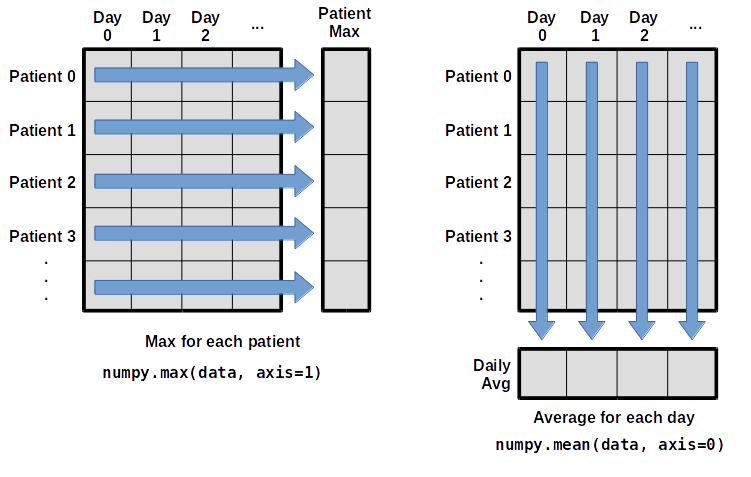
To support this functionality, most array functions allow us to specify the axis we want to work on. If we ask for the average across axis 0 (rows in our 2D example), we get:
print(numpy.mean(data, axis=0))
[  0.           0.45         1.11666667   1.75         2.43333333   3.15
   3.8          3.88333333   5.23333333   5.51666667   5.95         5.9
   8.35         7.73333333   8.36666667   9.5          9.58333333
  10.63333333  11.56666667  12.35        13.25        11.96666667
  11.03333333  10.16666667  10.           8.66666667   9.15         7.25
   7.33333333   6.58333333   6.06666667   5.95         5.11666667   3.6
   3.3          3.56666667   2.48333333   1.5          1.13333333
   0.56666667]
As a quick check, we can ask this array what its shape is:
print(numpy.mean(data, axis=0).shape)
(40,)
The expression (40,) tells us we have an N×1 vector,
so this is the average inflammation per day for all patients.
If we average across axis 1 (columns in our 2D example), we get:
print(numpy.mean(data, axis=1))
[ 5.45   5.425  6.1    5.9    5.55   6.225  5.975  6.65   6.625  6.525
  6.775  5.8    6.225  5.75   5.225  6.3    6.55   5.7    5.85   6.55
  5.775  5.825  6.175  6.1    5.8    6.425  6.05   6.025  6.175  6.55
  6.175  6.35   6.725  6.125  7.075  5.725  5.925  6.15   6.075  5.75
  5.975  5.725  6.3    5.9    6.75   5.925  7.225  6.15   5.95   6.275  5.7
  6.1    6.825  5.975  6.725  5.7    6.25   6.4    7.05   5.9  ]
which is the average inflammation per patient across all days.
Slicing Strings
A section of an array is called a slice. We can take slices of character strings as well:
element = 'oxygen'
print('first three characters:', element[0:3])
print('last three characters:', element[3:6])
first three characters: oxy last three characters: genWhat is the value of
element[:4]? What aboutelement[4:]? Orelement[:]?Solution
oxyg
en
oxygen
What is
element[-1]? What iselement[-2]?Solution
n
e
Given those answers, explain what
element[1:-1]does.Solution
Creates a substring from index 1 up to (not including) the final index, effectively removing the first and last letters from ‘oxygen’
How can we rewrite the slice for getting the last three characters of
element, so that it works even if we assign a different string toelement? Test your solution with the following strings:carpentry,clone,hi.Solution
element = 'oxygen'
print('last three characters:', element[-3:])
element = 'carpentry'
print('last three characters:', element[-3:])
element = 'clone'
print('last three characters:', element[-3:])
element = 'hi'
print('last three characters:', element[-3:])
last three characters: gen last three characters: try last three characters: one last three characters: hi
Thin Slices
The expression
element[3:3]produces an empty string, i.e., a string that contains no characters. Ifdataholds our array of patient data, what doesdata[3:3, 4:4]produce? What aboutdata[3:3, :]?Solution
array([], shape=(0, 0), dtype=float64)
array([], shape=(0, 40), dtype=float64)
Stacking Arrays
Arrays can be concatenated and stacked on top of one another, using NumPy’s
vstackandhstackfunctions for vertical and horizontal stacking, respectively.import numpy A = numpy.array([[1,2,3], [4,5,6], [7, 8, 9]]) print('A = ') print(A) B = numpy.hstack([A, A]) print('B = ') print(B) C = numpy.vstack([A, A]) print('C = ') print(C)A = [[1 2 3] [4 5 6] [7 8 9]] B = [[1 2 3 1 2 3] [4 5 6 4 5 6] [7 8 9 7 8 9]] C = [[1 2 3] [4 5 6] [7 8 9] [1 2 3] [4 5 6] [7 8 9]]Write some additional code that slices the first and last columns of
A, and stacks them into a 3x2 array. Make sure toSolution
A ‘gotcha’ with array indexing is that singleton dimensions are dropped by default. That means
A[:, 0]is a one dimensional array, which won’t stack as desired. To preserve singleton dimensions, the index itself can be a slice or array. For example,A[:, :1]returns a two dimensional array with one singleton dimension (i.e. a column vector).D = numpy.hstack((A[:, :1], A[:, -1:])) print('D = ') print(D)D = [[1 3] [4 6] [7 9]]Solution
An alternative way to achieve the same result is to use Numpy’s delete function to remove the second column of A.
D = numpy.delete(A, 1, 1)
print('D = ')
print(D)
D = [[1 3] [4 6] [7 9]]
Change In Inflammation
The patient data is longitudinal in the sense that each row represents a series of observations relating to one individual. This means that the change in inflammation over time is a meaningful concept. Let’s find out how to calculate changes in the data contained in an array with NumPy.
The
numpy.diff()function takes an array and returns the differences between two successive values. Let’s use it to examine the changes each day across the first week of patient 3 from our inflammation dataset.patient3_week1 = data[3, :7] print(patient3_week1)[0. 0. 2. 0. 4. 2. 2.]Calling
numpy.diff(patient3_week1)would do the following calculations[ 0 - 0, 2 - 0, 0 - 2, 4 - 0, 2 - 4, 2 - 2 ]and return the 6 difference values in a new array.
numpy.diff(patient3_week1)array([ 0., 2., -2., 4., -2., 0.])Note that the array of differences is shorter by one element (length 6).
When calling
numpy.diffwith a multi-dimensional array, anaxisargument may be passed to the function to specify which axis to process. When applyingnumpy.diffto our 2D inflammation arraydata, which axis would we specify?Solution
Since the row axis (0) is patients, it does not make sense to get the difference between two arbitrary patients. The column axis (1) is in days, so the difference is the change in inflammation – a meaningful concept.
numpy.diff(data, axis=1)If the shape of an individual data file is
(60, 40)(60 rows and 40 columns), what would the shape of the array be after you run thediff()function and why?Solution
The shape will be
(60, 39)because there is one fewer difference between columns than there are columns in the data.How would you find the largest change in inflammation for each patient? Does it matter if the change in inflammation is an increase or a decrease?
Solution
By using the
numpy.max()function after you apply thenumpy.diff()function, you will get the largest difference between days.numpy.max(numpy.diff(data, axis=1), axis=1)array([ 7., 12., 11., 10., 11., 13., 10., 8., 10., 10., 7., 7., 13., 7., 10., 10., 8., 10., 9., 10., 13., 7., 12., 9., 12., 11., 10., 10., 7., 10., 11., 10., 8., 11., 12., 10., 9., 10., 13., 10., 7., 7., 10., 13., 12., 8., 8., 10., 10., 9., 8., 13., 10., 7., 10., 8., 12., 10., 7., 12.])If inflammation values decrease along an axis, then the difference from one element to the next will be negative. If you are interested in the magnitude of the change and not the direction, the
numpy.absolute()function will provide that.Notice the difference if you get the largest absolute difference between readings.
numpy.max(numpy.absolute(numpy.diff(data, axis=1)), axis=1)array([ 12., 14., 11., 13., 11., 13., 10., 12., 10., 10., 10., 12., 13., 10., 11., 10., 12., 13., 9., 10., 13., 9., 12., 9., 12., 11., 10., 13., 9., 13., 11., 11., 8., 11., 12., 13., 9., 10., 13., 11., 11., 13., 11., 13., 13., 10., 9., 10., 10., 9., 9., 13., 10., 9., 10., 11., 13., 10., 10., 12.])
Key Points
Import a library into a program using
import libraryname.Use the
numpylibrary to work with arrays in Python.The expression
array.shapegives the shape of an array.Use
array[x, y]to select a single element from a 2D array.Array indices start at 0, not 1.
Use
low:highto specify aslicethat includes the indices fromlowtohigh-1.Use
# some kind of explanationto add comments to programs.Use
numpy.mean(array),numpy.max(array), andnumpy.min(array)to calculate simple statistics.Use
numpy.mean(array, axis=0)ornumpy.mean(array, axis=1)to calculate statistics across the specified axis.
Visualizing Tabular Data
Overview
Teaching: 25 min
Exercises: 20 minQuestions
How can I visualize tabular data in Python?
How can I group several plots together?
Objectives
Plot simple graphs from data.
Group several graphs in a single figure.
Visualizing data
The mathematician Richard Hamming once said, “The purpose of computing is insight, not numbers,” and
the best way to develop insight is often to visualize data. Visualization deserves an entire
lecture of its own, but we can explore a few features of Python’s matplotlib library here. While
there is no official plotting library, matplotlib is the de facto standard. First, we will
import the pyplot module from matplotlib and use two of its functions to create and display a
heat map of our data:
import matplotlib.pyplot
image = matplotlib.pyplot.imshow(data)
matplotlib.pyplot.show()
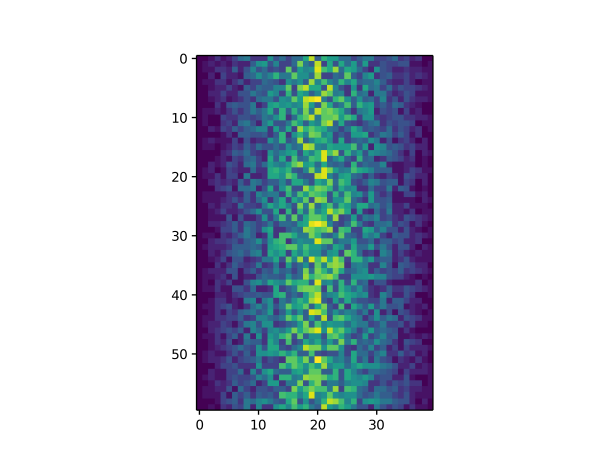
Blue pixels in this heat map represent low values, while yellow pixels represent high values. As we can see, inflammation rises and falls over a 40-day period. Let’s take a look at the average inflammation over time:
ave_inflammation = numpy.mean(data, axis=0)
ave_plot = matplotlib.pyplot.plot(ave_inflammation)
matplotlib.pyplot.show()
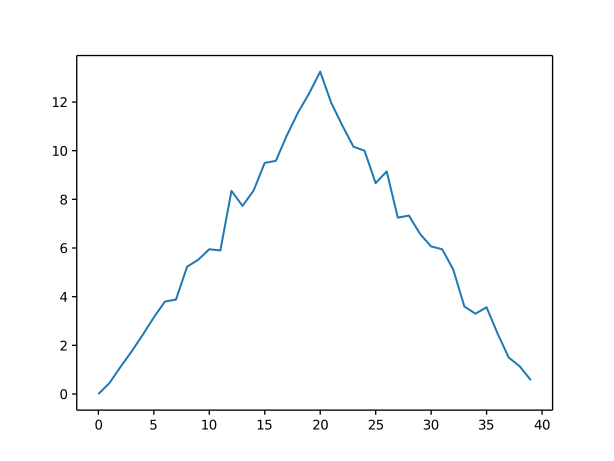
Here, we have put the average inflammation per day across all patients in the variable
ave_inflammation, then asked matplotlib.pyplot to create and display a line graph of those
values. The result is a roughly linear rise and fall, which is suspicious: we might instead expect
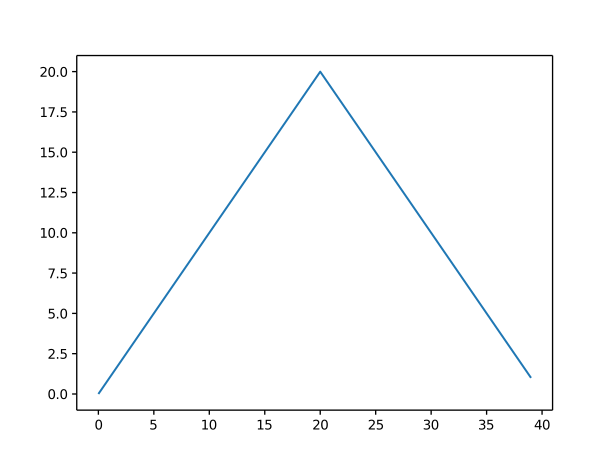
a sharper rise and slower fall. Let’s have a look at two other statistics:
max_plot = matplotlib.pyplot.plot(numpy.max(data, axis=0))
matplotlib.pyplot.show()
min_plot = matplotlib.pyplot.plot(numpy.min(data, axis=0))
matplotlib.pyplot.show()
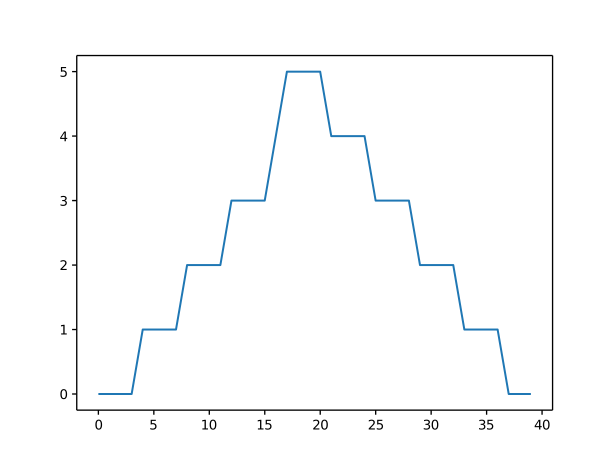
The maximum value rises and falls smoothly, while the minimum seems to be a step function. Neither trend seems particularly likely, so either there’s a mistake in our calculations or something is wrong with our data. This insight would have been difficult to reach by examining the numbers themselves without visualization tools.
Grouping plots
You can group similar plots in a single figure using subplots.
This script below uses a number of new commands. The function matplotlib.pyplot.figure()
creates a space into which we will place all of our plots. The parameter figsize
tells Python how big to make this space. Each subplot is placed into the figure using
its add_subplot method. The add_subplot method takes 3
parameters. The first denotes how many total rows of subplots there are, the second parameter
refers to the total number of subplot columns, and the final parameter denotes which subplot
your variable is referencing (left-to-right, top-to-bottom). Each subplot is stored in a
different variable (axes1, axes2, axes3). Once a subplot is created, the axes can
be titled using the set_xlabel() command (or set_ylabel()).
Here are our three plots side by side:
import numpy
import matplotlib.pyplot

data = numpy.loadtxt(fname='inflammation-01.csv', delimiter=',')

fig = matplotlib.pyplot.figure(figsize=(10.0, 3.0))

axes1 = fig.add_subplot(1, 3, 1)
axes2 = fig.add_subplot(1, 3, 2)
axes3 = fig.add_subplot(1, 3, 3)

axes1.set_ylabel('average')
axes1.plot(numpy.mean(data, axis=0))

axes2.set_ylabel('max')
axes2.plot(numpy.max(data, axis=0))

axes3.set_ylabel('min')
axes3.plot(numpy.min(data, axis=0))

fig.tight_layout()

matplotlib.pyplot.savefig('inflammation.png')
matplotlib.pyplot.show()
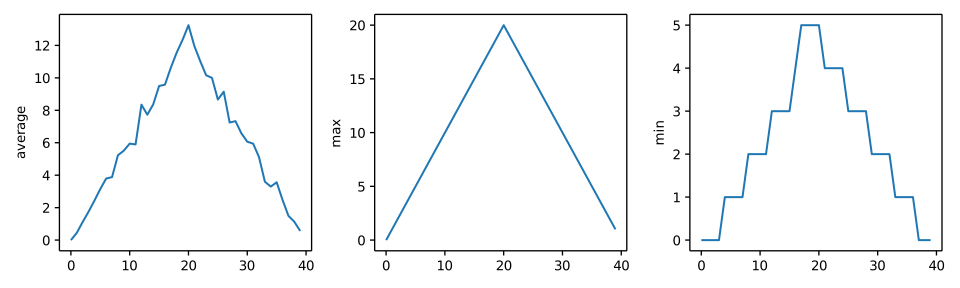
The call to loadtxt reads our data,
and the rest of the program tells the plotting library
how large we want the figure to be,
that we’re creating three subplots,
what to draw for each one,
and that we want a tight layout.
(If we leave out that call to fig.tight_layout(),
the graphs will actually be squeezed together more closely.)
The call to savefig stores the plot as a graphics file. This can be
a convenient way to store your plots for use in other documents, web
pages etc. The graphics format is automatically determined by
Matplotlib from the file name ending we specify; here PNG from
‘inflammation.png’. Matplotlib supports many different graphics
formats, including SVG, PDF, and JPEG.
Importing libraries with shortcuts
In this lesson we use the
import matplotlib.pyplotsyntax to import thepyplotmodule ofmatplotlib. However, shortcuts such asimport matplotlib.pyplot as pltare frequently used. Importingpyplotthis way means that after the initial import, rather than writingmatplotlib.pyplot.plot(...), you can now writeplt.plot(...). Another common convention is to use the shortcutimport numpy as npwhen importing the NumPy library. We then can writenp.loadtxt(...)instead ofnumpy.loadtxt(...), for example.Some people prefer these shortcuts as it is quicker to type and results in shorter lines of code - especially for libraries with long names! You will frequently see Python code online using a
pyplotfunction withplt, or a NumPy function withnp, and it’s because they’ve used this shortcut. It makes no difference which approach you choose to take, but you must be consistent as if you useimport matplotlib.pyplot as pltthenmatplotlib.pyplot.plot(...)will not work, and you must useplt.plot(...)instead. Because of this, when working with other people it is important you agree on how libraries are imported.
Plot Scaling
Why do all of our plots stop just short of the upper end of our graph?
Solution
Because matplotlib normally sets x and y axes limits to the min and max of our data (depending on data range)
If we want to change this, we can use the
set_ylim(min, max)method of each ‘axes’, for example:axes3.set_ylim(0,6)Update your plotting code to automatically set a more appropriate scale. (Hint: you can make use of the
maxandminmethods to help.)Solution
# One method
axes3.set_ylabel('min')
axes3.plot(numpy.min(data, axis=0))
axes3.set_ylim(0,6)
Solution
# A more automated approach
min_data = numpy.min(data, axis=0)
axes3.set_ylabel('min')
axes3.plot(min_data)
axes3.set_ylim(numpy.min(min_data), numpy.max(min_data) * 1.1)
Drawing Straight Lines
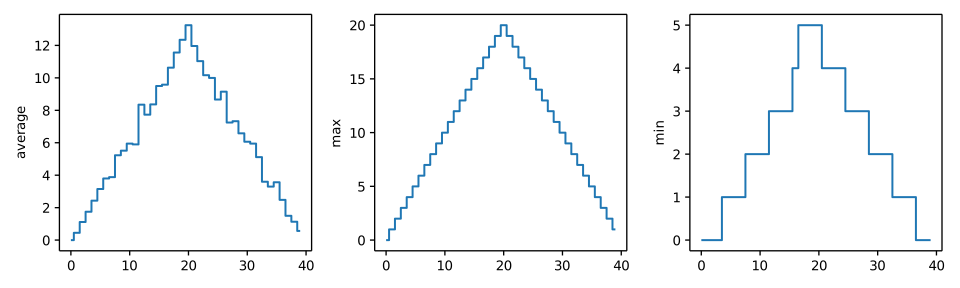
In the center and right subplots above, we expect all lines to look like step functions because non-integer value are not realistic for the minimum and maximum values. However, you can see that the lines are not always vertical or horizontal, and in particular the step function in the subplot on the right looks slanted. Why is this?
Solution
Because matplotlib interpolates (draws a straight line) between the points. One way to do avoid this is to use the Matplotlib
drawstyleoption:import numpy import matplotlib.pyplot data = numpy.loadtxt(fname='inflammation-01.csv', delimiter=',') fig = matplotlib.pyplot.figure(figsize=(10.0, 3.0)) axes1 = fig.add_subplot(1, 3, 1) axes2 = fig.add_subplot(1, 3, 2) axes3 = fig.add_subplot(1, 3, 3) axes1.set_ylabel('average') axes1.plot(numpy.mean(data, axis=0), drawstyle='steps-mid') axes2.set_ylabel('max') axes2.plot(numpy.max(data, axis=0), drawstyle='steps-mid') axes3.set_ylabel('min') axes3.plot(numpy.min(data, axis=0), drawstyle='steps-mid') fig.tight_layout() matplotlib.pyplot.show()
Make Your Own Plot
Create a plot showing the standard deviation (
numpy.std) of the inflammation data for each day across all patients.Solution
std_plot = matplotlib.pyplot.plot(numpy.std(data, axis=0))
matplotlib.pyplot.show()
Moving Plots Around
Modify the program to display the three plots on top of one another instead of side by side.
Solution
import numpy
import matplotlib.pyplot

data = numpy.loadtxt(fname='inflammation-01.csv', delimiter=',')

# change figsize (swap width and height)
fig = matplotlib.pyplot.figure(figsize=(3.0, 10.0))

# change add_subplot (swap first two parameters)
axes1 = fig.add_subplot(3, 1, 1)
axes2 = fig.add_subplot(3, 1, 2)
axes3 = fig.add_subplot(3, 1, 3)

axes1.set_ylabel('average')
axes1.plot(numpy.mean(data, axis=0))

axes2.set_ylabel('max')
axes2.plot(numpy.max(data, axis=0))

axes3.set_ylabel('min')
axes3.plot(numpy.min(data, axis=0))

fig.tight_layout()

matplotlib.pyplot.show()
Key Points
Use the
pyplotmodule from thematplotliblibrary for creating simple visualizations.
Storing Multiple Values in Lists
Overview
Teaching: 30 min
Exercises: 20 minQuestions
How can I store many values together?
Objectives
Explain what a list is.
Create and index lists of simple values.
Change the values of individual elements
Append values to an existing list
Reorder and slice list elements
Create and manipulate nested lists
In the previous episode, we analyzed a single file with inflammation data. Our goal, however, is to process all inflammation data we’ve got, which means that we still have eleven more files to go!
The natural first step is to collect the names of all the files that we have to process. In Python, a list is a way to store multiple values together. In this episode, we will learn how to store multiple values in a list as well as how to work with lists.
Python lists
Unlike NumPy arrays, lists are built into the language so we don’t have to load a library to use them. We create a list by putting values inside square brackets and separating the values with commas:
odds = [1, 3, 5, 7]
print('odds are:', odds)
odds are: [1, 3, 5, 7]
We can access elements of a list using indices – numbered positions of elements in the list. These positions are numbered starting at 0, so the first element has an index of 0.
print('first element:', odds[0])
print('last element:', odds[3])
print('"-1" element:', odds[-1])
first element: 1
last element: 7
"-1" element: 7
Yes, we can use negative numbers as indices in Python. When we do so, the index -1 gives us the
last element in the list, -2 the second to last, and so on.
Because of this, odds[3] and odds[-1] point to the same element here.
There is one important difference between lists and strings: we can change the values in a list, but we cannot change individual characters in a string. For example:
names = ['Curie', 'Darwing', 'Turing']  # typo in Darwin's name
print('names is originally:', names)
names[1] = 'Darwin'  # correct the name
print('final value of names:', names)
names is originally: ['Curie', 'Darwing', 'Turing']
final value of names: ['Curie', 'Darwin', 'Turing']
works, but:
name = 'Darwin'
name[0] = 'd'
---------------------------------------------------------------------------
TypeError                                 Traceback (most recent call last)
<ipython-input-8-220df48aeb2e> in <module>()
      1 name = 'Darwin'
----> 2 name[0] = 'd'

TypeError: 'str' object does not support item assignment
does not.
Ch-Ch-Ch-Ch-Changes
Data which can be modified in place is called mutable, while data which cannot be modified is called immutable. Strings and numbers are immutable. This does not mean that variables with string or number values are constants, but when we want to change the value of a string or number variable, we can only replace the old value with a completely new value.
Lists and arrays, on the other hand, are mutable: we can modify them after they have been created. We can change individual elements, append new elements, or reorder the whole list. For some operations, like sorting, we can choose whether to use a function that modifies the data in-place or a function that returns a modified copy and leaves the original unchanged.
Be careful when modifying data in-place. If two variables refer to the same list, and you modify the list value, it will change for both variables!
salsa = ['peppers', 'onions', 'cilantro', 'tomatoes']
my_salsa = salsa        # <-- my_salsa and salsa point to the *same* list data in memory
salsa[0] = 'hot peppers'
print('Ingredients in my salsa:', my_salsa)
Ingredients in my salsa: ['hot peppers', 'onions', 'cilantro', 'tomatoes']If you want variables with mutable values to be independent, you must make a copy of the value when you assign it.
salsa = ['peppers', 'onions', 'cilantro', 'tomatoes']
my_salsa = list(salsa)        # <-- makes a *copy* of the list
salsa[0] = 'hot peppers'
print('Ingredients in my salsa:', my_salsa)
Ingredients in my salsa: ['peppers', 'onions', 'cilantro', 'tomatoes']Because of pitfalls like this, code which modifies data in place can be more difficult to understand. However, it is often far more efficient to modify a large data structure in place than to create a modified copy for every small change. You should consider both of these aspects when writing your code.
Nested Lists
Since a list can contain any Python variables, it can even contain other lists.
For example, we could represent the products in the shelves of a small grocery shop:
x = [['pepper', 'zucchini', 'onion'],
     ['cabbage', 'lettuce', 'garlic'],
     ['apple', 'pear', 'banana']]
Here is a visual example of how indexing a list of lists
xworks:
Using the previously declared list
x, these would be the results of the index operations shown in the image:print([x[0]])[['pepper', 'zucchini', 'onion']]print(x[0])['pepper', 'zucchini', 'onion']print(x[0][0])'pepper'Thanks to Hadley Wickham for the image above.
![x is represented as a pepper shaker containing several packets of pepper. [x[0]] is represented
as a pepper shaker containing a single packet of pepper. x[0] is represented as a single packet of
pepper. x[0][0] is represented as single grain of pepper. Adapted
from @hadleywickham.](../fig/indexing_lists_python.png)
Heterogeneous Lists
Lists in Python can contain elements of different types. Example:
sample_ages = [10, 12.5, 'Unknown']
There are many ways to change the contents of lists besides assigning new values to individual elements:
odds.append(11)
print('odds after adding a value:', odds)
odds after adding a value: [1, 3, 5, 7, 11]
removed_element = odds.pop(0)
print('odds after removing the first element:', odds)
print('removed_element:', removed_element)
odds after removing the first element: [3, 5, 7, 11]
removed_element: 1
odds.reverse()
print('odds after reversing:', odds)
odds after reversing: [11, 7, 5, 3]
While modifying in place, it is useful to remember that Python treats lists in a slightly counter-intuitive way.
As we saw earlier, when we modified the salsa list item in-place, if we make a list, (attempt to)
copy it and then modify this list, we can cause all sorts of trouble. This also applies to modifying
the list using the above functions:
odds = [1, 3, 5, 7]
primes = odds
primes.append(2)
print('primes:', primes)
print('odds:', odds)
primes: [1, 3, 5, 7, 2]
odds: [1, 3, 5, 7, 2]
This is because Python stores a list in memory, and then can use multiple names to refer to the
same list. If all we want to do is copy a (simple) list, we can again use the list function, so we
do not modify a list we did not mean to:
odds = [1, 3, 5, 7]
primes = list(odds)
primes.append(2)
print('primes:', primes)
print('odds:', odds)
primes: [1, 3, 5, 7, 2]
odds: [1, 3, 5, 7]
Subsets of lists and strings can be accessed by specifying ranges of values in brackets, similar to how we accessed ranges of positions in a NumPy array. This is commonly referred to as “slicing” the list/string.
binomial_name = 'Drosophila melanogaster'
group = binomial_name[0:10]
print('group:', group)

species = binomial_name[11:23]
print('species:', species)

chromosomes = ['X', 'Y', '2', '3', '4']
autosomes = chromosomes[2:5]
print('autosomes:', autosomes)

last = chromosomes[-1]
print('last:', last)
group: Drosophila
species: melanogaster
autosomes: ['2', '3', '4']
last: 4
Slicing From the End
Use slicing to access only the last four characters of a string or entries of a list.
string_for_slicing = 'Observation date: 02-Feb-2013'
list_for_slicing = [['fluorine', 'F'],
                    ['chlorine', 'Cl'],
                    ['bromine', 'Br'],
                    ['iodine', 'I'],
                    ['astatine', 'At']]
'2013' [['chlorine', 'Cl'], ['bromine', 'Br'], ['iodine', 'I'], ['astatine', 'At']]Would your solution work regardless of whether you knew beforehand the length of the string or list (e.g. if you wanted to apply the solution to a set of lists of different lengths)? If not, try to change your approach to make it more robust.
Hint: Remember that indices can be negative as well as positive
Solution
Use negative indices to count elements from the end of a container (such as list or string):
string_for_slicing[-4:]
list_for_slicing[-4:]
Non-Continuous Slices
So far we’ve seen how to use slicing to take single blocks of successive entries from a sequence. But what if we want to take a subset of entries that aren’t next to each other in the sequence?
You can achieve this by providing a third argument to the range within the brackets, called the step size. The example below shows how you can take every third entry in a list:
primes = [2, 3, 5, 7, 11, 13, 17, 19, 23, 29, 31, 37]
subset = primes[0:12:3]
print('subset', subset)
subset [2, 7, 17, 29]Notice that the slice taken begins with the first entry in the range, followed by entries taken at equally-spaced intervals (the steps) thereafter. If you wanted to begin the subset with the third entry, you would need to specify that as the starting point of the sliced range:
primes = [2, 3, 5, 7, 11, 13, 17, 19, 23, 29, 31, 37]
subset = primes[2:12:3]
print('subset', subset)
subset [5, 13, 23, 37]Use the step size argument to create a new string that contains only every other character in the string “In an octopus’s garden in the shade”. Start with creating a variable to hold the string:
beatles = "In an octopus's garden in the shade"What slice of
beatleswill produce the following output (i.e., the first character, third character, and every other character through the end of the string)?I notpssgre ntesaeSolution
To obtain every other character you need to provide a slice with the step size of 2:
beatles[0:35:2]You can also leave out the beginning and end of the slice to take the whole string and provide only the step argument to go every second element:
beatles[::2]
If you want to take a slice from the beginning of a sequence, you can omit the first index in the range:
date = 'Monday 4 January 2016'
day = date[0:6]
print('Using 0 to begin range:', day)
day = date[:6]
print('Omitting beginning index:', day)
Using 0 to begin range: Monday
Omitting beginning index: Monday
And similarly, you can omit the ending index in the range to take a slice to the very end of the sequence:
months = ['jan', 'feb', 'mar', 'apr', 'may', 'jun', 'jul', 'aug', 'sep', 'oct', 'nov', 'dec']
sond = months[8:12]
print('With known last position:', sond)
sond = months[8:len(months)]
print('Using len() to get last entry:', sond)
sond = months[8:]
print('Omitting ending index:', sond)
With known last position: ['sep', 'oct', 'nov', 'dec']
Using len() to get last entry: ['sep', 'oct', 'nov', 'dec']
Omitting ending index: ['sep', 'oct', 'nov', 'dec']
Overloading
+usually means addition, but when used on strings or lists, it means “concatenate”. Given that, what do you think the multiplication operator*does on lists? In particular, what will be the output of the following code?counts = [2, 4, 6, 8, 10] repeats = counts * 2 print(repeats)
[2, 4, 6, 8, 10, 2, 4, 6, 8, 10][4, 8, 12, 16, 20][[2, 4, 6, 8, 10],[2, 4, 6, 8, 10]][2, 4, 6, 8, 10, 4, 8, 12, 16, 20]The technical term for this is operator overloading: a single operator, like
+or*, can do different things depending on what it’s applied to.Solution
The multiplication operator
*used on a list replicates elements of the list and concatenates them together:[2, 4, 6, 8, 10, 2, 4, 6, 8, 10]It’s equivalent to:
counts + counts
Key Points
[value1, value2, value3, ...]creates a list.Lists can contain any Python object, including lists (i.e., list of lists).
Lists are indexed and sliced with square brackets (e.g., list[0] and list[2:9]), in the same way as strings and arrays.
Lists are mutable (i.e., their values can be changed in place).
Strings are immutable (i.e., the characters in them cannot be changed).
Sets (Kai)
Overview
Teaching: 5 min
Exercises: 5 minQuestions
What is a set, and how do I use it?
Objectives
Explain how sets work.
Learn about set operations
A set keeps an unsorted unique collection of things.
- Different from lists
- Lists have a defined order of elements, sets are unordered.
- Lists can contain the same value multiple times, sets do not.
- Sets have a number of fast operations you can use to compare or combine them.
- Sets are great to keep track of things where order an count don’t matter.
- If you put a value that is already in a set into that set again, the set will not change.
beatles = set(['John', 'Paul', 'George', 'Ringo'])
print('Beatles:', beatles)
print('length:', len(beatles))
beatles.add('Ringo')
print('Beatles:', beatles)
print('length:', len(beatles))
Beatles: {'John', 'Ringo', 'Paul', 'George'}
length: 4
Beatles: {'John', 'Ringo', 'Paul', 'George'}
length: 4
Use in to check if something is in a set
Sets allow for efficient check of members.
print('Ringo is one of the Beatles:', 'Ringo' in beatles)
print('Keith is one of the Beatles:', 'Keith' in beatles)
Ringo is one of the Beatles: True
Keith is one of the Beatles: False
You can add values to the set by using add()
beatles.add('Pete')
print('beatles is now:', beatles)
beatles is now: {'Pete', 'John', 'Ringo', 'Paul', 'George'}
You can remove values from the set by using remove()
beatles.remove('Pete')
print('beatles is now:', beatles)
beatles is now: {'John', 'Ringo', 'Paul', 'George'}
Multiple sets can be combined using union()
odd = set([1, 3, 5, 7, 9])
even = set([2, 4, 6, 8, 10])
all_numbers = odd.union(even)
print('Odd numbers:', odd)
print('Even numbers:', even)
print('All numbers:', all_numbers)
Odd numbers: {1, 3, 5, 9, 7}
Even numbers: {8, 2, 10, 4, 6}
All numbers: {1, 2, 3, 4, 5, 6, 7, 8, 9, 10}
Sets are unordered
As sets are unordered, the order of the elements can be different when you print this.
You can intersect two sets
This gives a new set containing only members existing in both sets
primes = set([2, 3, 5, 7])
odd_primes = primes.intersection(odd)
print('Primes that are also odd numbers:', odd_primes)
Primes that are also odd numbers: {3, 5, 7}
You can get the difference between to sets
This gives a new set containing all members of the first set not in the second set
even_non_primes = even.difference(primes)
print('Even numbers that are not prime numbers:', even_non_primes)
Even numbers that are not prime numbers: {8, 10, 4, 6}
For difference(), the order matters
Using the same sets in a different order gives a different result.
uneven_primes = primes.difference(even)
print('Primes that are not even:', uneven_primes)
Primes that are not even: {3, 5, 7}
Convert to a list and sort to get sorted output
sorted_primes = list(primes)
sorted_primes.sort()
print('Sorted primes:', sorted_primes)
Sorted primes: [2, 3, 5, 7]
Initialising
What does the following program print?
letters = set('Hello world!')
sorted_letters = list(letters)
sorted_letters.sort()
print('Letters in greeting:', sorted_letters)
Fill in the Blanks
Fill in the blanks so that the program below produces the output shown.
multiples_of_two = set([2, 4, 6, 8, 10])
multiples_of_three = set([3, 6, 9])
result1 = multiples_of_two._______(multiples_of_three)
print('1', result1)
result2 = multiples_of_____.______(multiples_of______)
sorted_result2 = list(result2)
sorted_result2.sort()
print('2', sorted_result2)
1 {6} 2 [3, 9]
Key Points
A set stores unsorted unique values.
The set list contains no values.
Sets may contain values of different types.
Sets (Kai)
Overview
Teaching: 5 min
Exercises: 5 minQuestions
What is a set, and how do I use it?
Objectives
Explain how sets work.
Learn about set operations
A set keeps an unsorted unique collection of things.
- Different from lists
- Lists have a defined order of elements, sets are unordered.
- Lists can contain the same value multiple times, sets do not.
- Sets have a number of fast operations you can use to compare or combine them.
- Sets are great to keep track of things where order an count don’t matter.
- If you put a value that is already in a set into that set again, the set will not change.
beatles = set(['John', 'Paul', 'George', 'Ringo'])
print('Beatles:', beatles)
print('length:', len(beatles))
beatles.add('Ringo')
print('Beatles:', beatles)
print('length:', len(beatles))
Beatles: {'John', 'Ringo', 'Paul', 'George'}
length: 4
Beatles: {'John', 'Ringo', 'Paul', 'George'}
length: 4
Use in to check if something is in a set
Sets allow for efficient check of members.
print('Ringo is one of the Beatles:', 'Ringo' in beatles)
print('Keith is one of the Beatles:', 'Keith' in beatles)
Ringo is one of the Beatles: True
Keith is one of the Beatles: False
You can add values to the set by using add()
beatles.add('Pete')
print('beatles is now:', beatles)
beatles is now: {'Pete', 'John', 'Ringo', 'Paul', 'George'}
You can remove values from the set by using remove()
beatles.remove('Pete')
print('beatles is now:', beatles)
beatles is now: {'John', 'Ringo', 'Paul', 'George'}
Multiple sets can be combined using union()
odd = set([1, 3, 5, 7, 9])
even = set([2, 4, 6, 8, 10])
all_numbers = odd.union(even)
print('Odd numbers:', odd)
print('Even numbers:', even)
print('All numbers:', all_numbers)
Odd numbers: {1, 3, 5, 9, 7}
Even numbers: {8, 2, 10, 4, 6}
All numbers: {1, 2, 3, 4, 5, 6, 7, 8, 9, 10}
Sets are unordered
As sets are unordered, the order of the elements can be different when you print this.
You can intersect two sets
This gives a new set containing only members existing in both sets
primes = set([2, 3, 5, 7])
odd_primes = primes.intersection(odd)
print('Primes that are also odd numbers:', odd_primes)
Primes that are also odd numbers: {3, 5, 7}
You can get the difference between to sets
This gives a new set containing all members of the first set not in the second set
even_non_primes = even.difference(primes)
print('Even numbers that are not prime numbers:', even_non_primes)
Even numbers that are not prime numbers: {8, 10, 4, 6}
For difference(), the order matters
Using the same sets in a different order gives a different result.
uneven_primes = primes.difference(even)
print('Primes that are not even:', uneven_primes)
Primes that are not even: {3, 5, 7}
Convert to a list and sort to get sorted output
sorted_primes = list(primes)
sorted_primes.sort()
print('Sorted primes:', sorted_primes)
Sorted primes: [2, 3, 5, 7]
Initialising
What does the following program print?
letters = set('Hello world!')
sorted_letters = list(letters)
sorted_letters.sort()
print('Letters in greeting:', sorted_letters)
Fill in the Blanks
Fill in the blanks so that the program below produces the output shown.
multiples_of_two = set([2, 4, 6, 8, 10])
multiples_of_three = set([3, 6, 9])
result1 = multiples_of_two._______(multiples_of_three)
print('1', result1)
result2 = multiples_of_____.______(multiples_of______)
sorted_result2 = list(result2)
sorted_result2.sort()
print('2', sorted_result2)
1 {6} 2 [3, 9]
Key Points
A set stores unsorted unique values.
The set list contains no values.
Sets may contain values of different types.
Repeating Actions with Loops
Overview
Teaching: 30 min
Exercises: 0 minQuestions
How can I do the same operations on many different values?
Objectives
Explain what a
forloop does.Correctly write
forloops to repeat simple calculations.Trace changes to a loop variable as the loop runs.
Trace changes to other variables as they are updated by a
forloop.
In the first episode, we wrote Python code that plots values of interest from our first
inflammation dataset (inflammation-01.csv), which revealed some suspicious features in it.
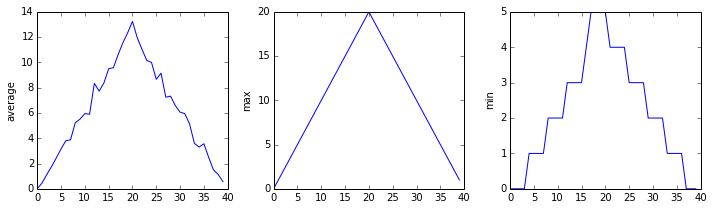
We have a dozen data sets right now, though, and more on the way. We want to create plots for all of our data sets with a single statement. To do that, we’ll have to teach the computer how to repeat things.
An example task that we might want to repeat is accessing numbers in a list, which we will do by printing each number on a line of its own.
odds = [1, 3, 5, 7]
In Python, a list is basically an ordered collection of elements, and every
element has a unique number associated with it – its index. This means that
we can access elements in a list using their indices.
For example, we can get the first number in the list odds,
by using odds[0]. One way to print each number is to use four print statements:
print(odds[0])
print(odds[1])
print(odds[2])
print(odds[3])
1
3
5
7
This is a bad approach for three reasons:
-
Not scalable. Imagine you need to print a list that has hundreds of elements. It might be easier to type them in manually.
-
Difficult to maintain. If we want to decorate each printed element with an asterisk or any other character, we would have to change four lines of code. While this might not be a problem for small lists, it would definitely be a problem for longer ones.
-
Fragile. If we use it with a list that has more elements than what we initially envisioned, it will only display part of the list’s elements. A shorter list, on the other hand, will cause an error because it will be trying to display elements of the list that don’t exist.
odds = [1, 3, 5]
print(odds[0])
print(odds[1])
print(odds[2])
print(odds[3])
1
3
5
---------------------------------------------------------------------------
IndexError                                Traceback (most recent call last)
<ipython-input-3-7974b6cdaf14> in <module>()
      3 print(odds[1])
      4 print(odds[2])
----> 5 print(odds[3])

IndexError: list index out of range
Here’s a better approach: a for loop
odds = [1, 3, 5, 7]
for num in odds:
    print(num)
1
3
5
7
This is shorter — certainly shorter than something that prints every number in a hundred-letter list — and more robust as well:
odds = [1, 3, 5, 7, 9, 11]
for num in odds:
    print(num)
1
3
5
7
9
11
The improved version uses a for loop to repeat an operation — in this case, printing — once for each thing in a sequence. The general form of a loop is:
for variable in collection:
    # do things using variable, such as print
Using the example example above, the loop might look like this:
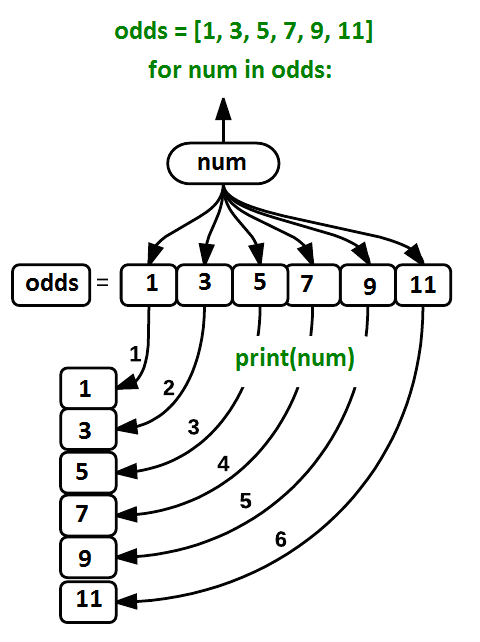
where each number (num) in the variable odds is looped through and printed one number after
another. The other numbers in the diagram denote which loop cycle the number was printed in (1
being the first loop cycle, and 6 being the final loop cycle).
We can call the loop variable anything we like, but
there must be a colon at the end of the line starting the loop, and we must indent anything we
want to run inside the loop. Unlike many other languages, there is no command to signify the end
of the loop body (e.g. end for); what is indented after the for statement belongs to the loop.
What’s in a name?
In the example above, the loop variable was given the name
numas a mnemonic; it is short for ‘number’. We can choose any name we want for variables. We might just as easily have chosen the namebananafor the loop variable, as long as we use the same name when we invoke the variable inside the loop:odds = [1, 3, 5, 7, 9, 11] for banana in odds: print(banana)1 3 5 7 9 11It is a good idea to choose variable names that are meaningful, otherwise it would be more difficult to understand what the loop is doing.
Here’s another loop that repeatedly updates a variable:
length = 0
names = ['Curie', 'Darwin', 'Turing']
for value in names:
    length = length + 1
print('There are', length, 'names in the list.')
There are 3 names in the list.
It’s worth tracing the execution of this little program step by step.
Since there are three names in names,
the statement on line 4 will be executed three times.
The first time around,
length is zero (the value assigned to it on line 1)
and value is Curie.
The statement adds 1 to the old value of length,
producing 1,
and updates length to refer to that new value.
The next time around,
+value is Darwin and length is 1,
so length is updated to be 2.
After one more update,
length is 3;
since there is nothing left in names for Python to process,
the loop finishes
and the print function on line 5 tells us our final answer.
Note that a loop variable is a variable that’s being used to record progress in a loop. It still exists after the loop is over, and we can re-use variables previously defined as loop variables as well:
name = 'Rosalind'
for name in ['Curie', 'Darwin', 'Turing']:
    print(name)
print('after the loop, name is', name)
Curie
Darwin
Turing
after the loop, name is Turing
Note also that finding the length of an object is such a common operation
that Python actually has a built-in function to do it called len:
print(len([0, 1, 2, 3]))
4
len is much faster than any function we could write ourselves,
and much easier to read than a two-line loop;
it will also give us the length of many other things that we haven’t met yet,
so we should always use it when we can.
From 1 to N
Python has a built-in function called
rangethat generates a sequence of numbers.rangecan accept 1, 2, or 3 parameters.
- If one parameter is given,
rangegenerates a sequence of that length, starting at zero and incrementing by 1. For example,range(3)produces the numbers0, 1, 2.- If two parameters are given,
rangestarts at the first and ends just before the second, incrementing by one. For example,range(2, 5)produces2, 3, 4.- If
rangeis given 3 parameters, it starts at the first one, ends just before the second one, and increments by the third one. For example,range(3, 10, 2)produces3, 5, 7, 9.Using
range, write a loop that usesrangeto print the first 3 natural numbers:1 2 3Solution
for number in range(1, 4):
    print(number)
Understanding the loops
Given the following loop:
word = 'oxygen'
for char in word:
    print(char)
How many times is the body of the loop executed?
- 3 times
- 4 times
- 5 times
- 6 times
Solution
The body of the loop is executed 6 times.
Computing Powers With Loops
Exponentiation is built into Python:
print(5 ** 3)125Write a loop that calculates the same result as
5 ** 3using multiplication (and without exponentiation).Solution
result = 1
for number in range(0, 3):
    result = result * 5
print(result)
Summing a list
Write a loop that calculates the sum of elements in a list by adding each element and printing the final value, so
[124, 402, 36]prints 562Solution
numbers = [124, 402, 36]
summed = 0
for num in numbers:
    summed = summed + num
print(summed)
Computing the Value of a Polynomial
The built-in function
enumeratetakes a sequence (e.g. a list) and generates a new sequence of the same length. Each element of the new sequence is a pair composed of the index (0, 1, 2,…) and the value from the original sequence:for idx, val in enumerate(a_list): # Do something using idx and valThe code above loops through
a_list, assigning the index toidxand the value toval.Suppose you have encoded a polynomial as a list of coefficients in the following way: the first element is the constant term, the second element is the coefficient of the linear term, the third is the coefficient of the quadratic term, etc.
x = 5 coefs = [2, 4, 3] y = coefs[0] * x**0 + coefs[1] * x**1 + coefs[2] * x**2 print(y)97Write a loop using
enumerate(coefs)which computes the valueyof any polynomial, givenxandcoefs.Solution
y = 0
for idx, coef in enumerate(coefs):
    y = y + coef * x**idx
Key Points
Use
for variable in sequenceto process the elements of a sequence one at a time.The body of a
forloop must be indented.Use
len(thing)to determine the length of something that contains other values.
Night
Overview
Teaching: 0 min
Exercises: 0 minQuestions
Objectives
Key Points
Analyzing Data from Multiple Files
Overview
Teaching: 20 min
Exercises: 0 minQuestions
How can I do the same operations on many different files?
Objectives
Use a library function to get a list of filenames that match a wildcard pattern.
Write a
forloop to process multiple files.
We now have almost everything we need to process all our data files. The only thing that’s missing is a library with a rather unpleasant name:
import glob
The glob library contains a function, also called glob,
that finds files and directories whose names match a pattern.
We provide those patterns as strings:
the character * matches zero or more characters,
while ? matches any one character.
We can use this to get the names of all the CSV files in the current directory:
print(glob.glob('inflammation*.csv'))
['inflammation-05.csv', 'inflammation-11.csv', 'inflammation-12.csv', 'inflammation-08.csv',
'inflammation-03.csv', 'inflammation-06.csv', 'inflammation-09.csv', 'inflammation-07.csv',
'inflammation-10.csv', 'inflammation-02.csv', 'inflammation-04.csv', 'inflammation-01.csv']
As these examples show,
glob.glob’s result is a list of file and directory paths in arbitrary order.
This means we can loop over it
to do something with each filename in turn.
In our case,
the “something” we want to do is generate a set of plots for each file in our inflammation dataset.
If we want to start by analyzing just the first three files in alphabetical order, we can use the
sorted built-in function to generate a new sorted list from the glob.glob output:
import glob
import numpy
import matplotlib.pyplot

filenames = sorted(glob.glob('inflammation*.csv'))
filenames = filenames[0:3]
for filename in filenames:
    print(filename)

    data = numpy.loadtxt(fname=filename, delimiter=',')

    fig = matplotlib.pyplot.figure(figsize=(10.0, 3.0))

    axes1 = fig.add_subplot(1, 3, 1)
    axes2 = fig.add_subplot(1, 3, 2)
    axes3 = fig.add_subplot(1, 3, 3)

    axes1.set_ylabel('average')
    axes1.plot(numpy.mean(data, axis=0))

    axes2.set_ylabel('max')
    axes2.plot(numpy.max(data, axis=0))

    axes3.set_ylabel('min')
    axes3.plot(numpy.min(data, axis=0))

    fig.tight_layout()
    matplotlib.pyplot.show()
inflammation-01.csv
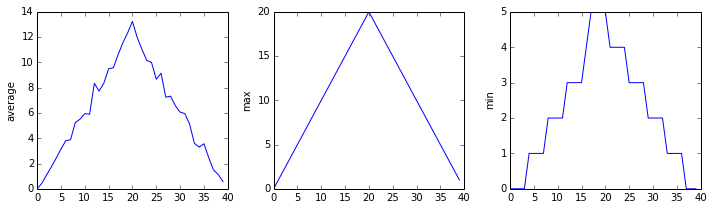
inflammation-02.csv
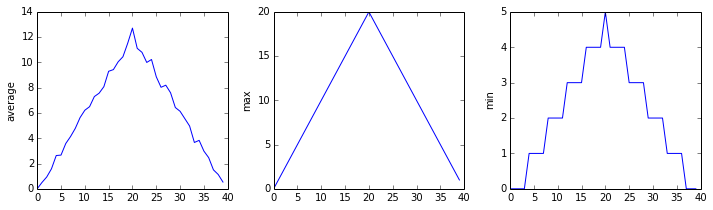
inflammation-03.csv
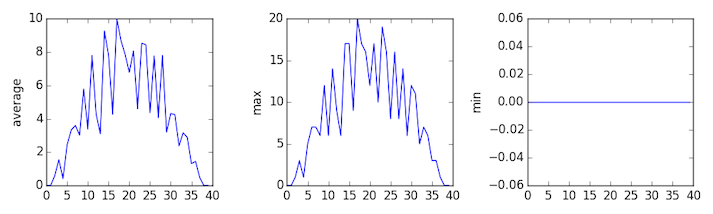
Sure enough, the maxima of the first two data sets show exactly the same ramp as the first, and their minima show the same staircase structure; a different situation has been revealed in the third dataset, where the maxima are a bit less regular, but the minima are consistently zero.
Plotting Differences
Plot the difference between the average inflammations reported in the first and second datasets (stored in
inflammation-01.csvandinflammation-02.csv, correspondingly), i.e., the difference between the leftmost plots of the first two figures.Solution
import glob
import numpy
import matplotlib.pyplot

filenames = sorted(glob.glob('inflammation*.csv'))

data0 = numpy.loadtxt(fname=filenames[0], delimiter=',')
data1 = numpy.loadtxt(fname=filenames[1], delimiter=',')

fig = matplotlib.pyplot.figure(figsize=(10.0, 3.0))

matplotlib.pyplot.ylabel('Difference in average')
matplotlib.pyplot.plot(numpy.mean(data0, axis=0) - numpy.mean(data1, axis=0))

fig.tight_layout()
matplotlib.pyplot.show()
Generate Composite Statistics
Use each of the files once to generate a dataset containing values averaged over all patients:
filenames = glob.glob('inflammation*.csv')
composite_data = numpy.zeros((60,40))
for filename in filenames:
    # sum each new file's data into composite_data as it's read
    #
# and then divide the composite_data by number of samples
composite_data = composite_data / len(filenames)
Then use pyplot to generate average, max, and min for all patients.
Solution
import glob
import numpy
import matplotlib.pyplot

filenames = glob.glob('inflammation*.csv')
composite_data = numpy.zeros((60,40))

for filename in filenames:
    data = numpy.loadtxt(fname = filename, delimiter=',')
    composite_data = composite_data + data

composite_data = composite_data / len(filenames)

fig = matplotlib.pyplot.figure(figsize=(10.0, 3.0))

axes1 = fig.add_subplot(1, 3, 1)
axes2 = fig.add_subplot(1, 3, 2)
axes3 = fig.add_subplot(1, 3, 3)

axes1.set_ylabel('average')
axes1.plot(numpy.mean(composite_data, axis=0))

axes2.set_ylabel('max')
axes2.plot(numpy.max(composite_data, axis=0))

axes3.set_ylabel('min')
axes3.plot(numpy.min(composite_data, axis=0))

fig.tight_layout()

matplotlib.pyplot.show()
Key Points
Use
glob.glob(pattern)to create a list of files whose names match a pattern.Use
*in a pattern to match zero or more characters, and?to match any single character.
Making Choices
Overview
Teaching: 25 min
Exercises: 0 minQuestions
How can my programs do different things based on data values?
Objectives
Write conditional statements including
if,elif, andelsebranches.Correctly evaluate expressions containing
andandor.
In our last lesson, we discovered something suspicious was going on in our inflammation data by drawing some plots. How can we use Python to automatically recognize the different features we saw, and take a different action for each? In this lesson, we’ll learn how to write code that runs only when certain conditions are true.
Conditionals
We can ask Python to take different actions, depending on a condition, with an if statement:
num = 37
if num > 100:
    print('greater')
else:
    print('not greater')
print('done')
not greater
done
The second line of this code uses the keyword if to tell Python that we want to make a choice.
If the test that follows the if statement is true,
the body of the if
(i.e., the set of lines indented underneath it) is executed, and “greater” is printed.
If the test is false,
the body of the else is executed instead, and “not greater” is printed.
Only one or the other is ever executed before continuing on with program execution to print “done”:

Conditional statements don’t have to include an else.
If there isn’t one,
Python simply does nothing if the test is false:
num = 53
print('before conditional...')
if num > 100:
    print(num, 'is greater than 100')
print('...after conditional')
before conditional...
...after conditional
We can also chain several tests together using elif,
which is short for “else if”.
The following Python code uses elif to print the sign of a number.
num = -3

if num > 0:
    print(num, 'is positive')
elif num == 0:
    print(num, 'is zero')
else:
    print(num, 'is negative')
-3 is negative
Note that to test for equality we use a double equals sign ==
rather than a single equals sign = which is used to assign values.
Comparing in Python
Along with the
>and==operators we have already used for comparing values in our conditionals, there are a few more options to know about:
>: greater than<: less than==: equal to!=: does not equal>=: greater than or equal to<=: less than or equal to
We can also combine tests using and and or.
and is only true if both parts are true:
if (1 > 0) and (-1 >= 0):
    print('both parts are true')
else:
    print('at least one part is false')
at least one part is false
while or is true if at least one part is true:
if (1 < 0) or (1 >= 0):
    print('at least one test is true')
at least one test is true
TrueandFalse
TrueandFalseare special words in Python calledbooleans, which represent truth values. A statement such as1 < 0returns the valueFalse, while-1 < 0returns the valueTrue.
Checking our Data
Now that we’ve seen how conditionals work,
we can use them to check for the suspicious features we saw in our inflammation data.
We are about to use functions provided by the numpy module again.
Therefore, if you’re working in a new Python session, make sure to load the
module with:
import numpy
From the first couple of plots, we saw that maximum daily inflammation exhibits a strange behavior and raises one unit a day. Wouldn’t it be a good idea to detect such behavior and report it as suspicious? Let’s do that! However, instead of checking every single day of the study, let’s merely check if maximum inflammation in the beginning (day 0) and in the middle (day 20) of the study are equal to the corresponding day numbers.
max_inflammation_0 = numpy.max(data, axis=0)[0]
max_inflammation_20 = numpy.max(data, axis=0)[20]

if max_inflammation_0 == 0 and max_inflammation_20 == 20:
    print('Suspicious looking maxima!')
We also saw a different problem in the third dataset;
the minima per day were all zero (looks like a healthy person snuck into our study).
We can also check for this with an elif condition:
elif numpy.sum(numpy.min(data, axis=0)) == 0:
    print('Minima add up to zero!')
And if neither of these conditions are true, we can use else to give the all-clear:
else:
    print('Seems OK!')
Let’s test that out:
data = numpy.loadtxt(fname='inflammation-01.csv', delimiter=',')

max_inflammation_0 = numpy.max(data, axis=0)[0]
max_inflammation_20 = numpy.max(data, axis=0)[20]

if max_inflammation_0 == 0 and max_inflammation_20 == 20:
    print('Suspicious looking maxima!')
elif numpy.sum(numpy.min(data, axis=0)) == 0:
    print('Minima add up to zero!')
else:
    print('Seems OK!')
Suspicious looking maxima!
data = numpy.loadtxt(fname='inflammation-03.csv', delimiter=',')

max_inflammation_0 = numpy.max(data, axis=0)[0]
max_inflammation_20 = numpy.max(data, axis=0)[20]

if max_inflammation_0 == 0 and max_inflammation_20 == 20:
    print('Suspicious looking maxima!')
elif numpy.sum(numpy.min(data, axis=0)) == 0:
    print('Minima add up to zero!')
else:
    print('Seems OK!')
Minima add up to zero!
In this way,
we have asked Python to do something different depending on the condition of our data.
Here we printed messages in all cases,
but we could also imagine not using the else catch-all
so that messages are only printed when something is wrong,
freeing us from having to manually examine every plot for features we’ve seen before.
How Many Paths?
Consider this code:
if 4 > 5:
    print('A')
elif 4 == 5:
    print('B')
elif 4 < 5:
    print('C')
Which of the following would be printed if you were to run this code? Why did you pick this answer?
- A
- B
- C
- B and C
Solution
C gets printed because the first two conditions,
4 > 5and4 == 5, are not true, but4 < 5is true.
What Is Truth?
TrueandFalsebooleans are not the only values in Python that are true and false. In fact, any value can be used in aniforelif. After reading and running the code below, explain what the rule is for which values are considered true and which are considered false.if '': print('empty string is true') if 'word': print('word is true') if []: print('empty list is true') if [1, 2, 3]: print('non-empty list is true') if 0: print('zero is true') if 1: print('one is true')
That’s Not Not What I Meant
Sometimes it is useful to check whether some condition is not true. The Boolean operator
notcan do this explicitly. After reading and running the code below, write someifstatements that usenotto test the rule that you formulated in the previous challenge.if not '': print('empty string is not true') if not 'word': print('word is not true') if not not True: print('not not True is true')
Close Enough
Write some conditions that print
Trueif the variableais within 10% of the variablebandFalseotherwise. Compare your implementation with your partner’s: do you get the same answer for all possible pairs of numbers?Hint
There is a built-in function
absthat returns the absolute value of a number:print(abs(-12))12Solution 1
a = 5
b = 5.1

if abs(a - b) <= 0.1 * abs(b):
    print('True')
else:
    print('False')
Solution 2
print(abs(a - b) <= 0.1 * abs(b))This works because the Booleans
TrueandFalsehave string representations which can be printed.
In-Place Operators
Python (and most other languages in the C family) provides in-place operators that work like this:
x = 1 # original value x += 1 # add one to x, assigning result back to x x *= 3 # multiply x by 3 print(x)6Write some code that sums the positive and negative numbers in a list separately, using in-place operators. Do you think the result is more or less readable than writing the same without in-place operators?
Solution
positive_sum = 0
negative_sum = 0
test_list = [3, 4, 6, 1, -1, -5, 0, 7, -8]
for num in test_list:
    if num > 0:
        positive_sum += num
    elif num == 0:
        pass
    else:
        negative_sum += num
print(positive_sum, negative_sum)
Here
passmeans “don’t do anything”. In this particular case, it’s not actually needed, since ifnum == 0neither sum needs to change, but it illustrates the use ofelifandpass.
Sorting a List Into Buckets
In our
datafolder, large data sets are stored in files whose names start with “inflammation-“ and small data sets – in files whose names start with “small-“. We also have some other files that we do not care about at this point. We’d like to break all these files into three lists calledlarge_files,small_files, andother_files, respectively.Add code to the template below to do this. Note that the string method
startswithreturnsTrueif and only if the string it is called on starts with the string passed as an argument, that is:'String'.startswith('Str')TrueBut
'String'.startswith('str')FalseUse the following Python code as your starting point:
filenames = ['inflammation-01.csv',
         'myscript.py',
         'inflammation-02.csv',
         'small-01.csv',
         'small-02.csv']
large_files = []
small_files = []
other_files = []
Your solution should:
- loop over the names of the files
- figure out which group each filename belongs in
- append the filename to that list
In the end the three lists should be:
large_files = ['inflammation-01.csv', 'inflammation-02.csv'] small_files = ['small-01.csv', 'small-02.csv'] other_files = ['myscript.py']Solution
for filename in filenames: if filename.startswith('inflammation-'): large_files.append(filename) elif filename.startswith('small-'): small_files.append(filename) else: other_files.append(filename) print('large_files:', large_files) print('small_files:', small_files) print('other_files:', other_files)
Counting Vowels
- Write a loop that counts the number of vowels in a character string.
- Test it on a few individual words and full sentences.
- Once you are done, compare your solution to your neighbor’s. Did you make the same decisions about how to handle the letter ‘y’ (which some people think is a vowel, and some do not)?
Solution
vowels = 'aeiouAEIOU' sentence = 'Mary had a little lamb.' count = 0 for char in sentence: if char in vowels: count += 1 print('The number of vowels in this string is ' + str(count))
Key Points
Use
if conditionto start a conditional statement,elif conditionto provide additional tests, andelseto provide a default.The bodies of the branches of conditional statements must be indented.
Use
==to test for equality.
X and Yis only true if bothXandYare true.
X or Yis true if eitherXorY, or both, are true.Zero, the empty string, and the empty list are considered false; all other numbers, strings, and lists are considered true.
TrueandFalserepresent truth values.
Creating Functions
Overview
Teaching: 30 min
Exercises: 0 minQuestions
How can I define new functions?
What’s the difference between defining and calling a function?
What happens when I call a function?
Objectives
Define a function that takes parameters.
Return a value from a function.
Test and debug a function.
Set default values for function parameters.
Explain why we should divide programs into small, single-purpose functions.
At this point,
we’ve written code to draw some interesting features in our inflammation data,
loop over all our data files to quickly draw these plots for each of them,
and have Python make decisions based on what it sees in our data.
But, our code is getting pretty long and complicated;
what if we had thousands of datasets,
and didn’t want to generate a figure for every single one?
Commenting out the figure-drawing code is a nuisance.
Also, what if we want to use that code again,
on a different dataset or at a different point in our program?
Cutting and pasting it is going to make our code get very long and very repetitive,
very quickly.
We’d like a way to package our code so that it is easier to reuse,
and Python provides for this by letting us define things called ‘functions’ —
a shorthand way of re-executing longer pieces of code.
Let’s start by defining a function fahr_to_celsius that converts temperatures
from Fahrenheit to Celsius:
def fahr_to_celsius(temp):
return ((temp - 32) * (5/9))

The function definition opens with the keyword def followed by the
name of the function (fahr_to_celsius) and a parenthesized list of parameter names (temp). The
body of the function — the
statements that are executed when it runs — is indented below the
definition line. The body concludes with a return keyword followed by the return value.
When we call the function, the values we pass to it are assigned to those variables so that we can use them inside the function. Inside the function, we use a return statement to send a result back to whoever asked for it.
Let’s try running our function.
fahr_to_celsius(32)
This command should call our function, using “32” as the input and return the function value.
In fact, calling our own function is no different from calling any other function:
print('freezing point of water:', fahr_to_celsius(32), 'C')
print('boiling point of water:', fahr_to_celsius(212), 'C')
freezing point of water: 0.0 C
boiling point of water: 100.0 C
We’ve successfully called the function that we defined, and we have access to the value that we returned.
Composing Functions
Now that we’ve seen how to turn Fahrenheit into Celsius, we can also write the function to turn Celsius into Kelvin:
def celsius_to_kelvin(temp_c):
return temp_c + 273.15
print('freezing point of water in Kelvin:', celsius_to_kelvin(0.))
freezing point of water in Kelvin: 273.15
What about converting Fahrenheit to Kelvin? We could write out the formula, but we don’t need to. Instead, we can compose the two functions we have already created:
def fahr_to_kelvin(temp_f):
temp_c = fahr_to_celsius(temp_f)
temp_k = celsius_to_kelvin(temp_c)
return temp_k
print('boiling point of water in Kelvin:', fahr_to_kelvin(212.0))
boiling point of water in Kelvin: 373.15
This is our first taste of how larger programs are built: we define basic operations, then combine them in ever-larger chunks to get the effect we want. Real-life functions will usually be larger than the ones shown here — typically half a dozen to a few dozen lines — but they shouldn’t ever be much longer than that, or the next person who reads it won’t be able to understand what’s going on.
Variable Scope
In composing our temperature conversion functions, we created variables inside of those functions,
temp, temp_c, temp_f, and temp_k.
We refer to these variables as local variables
because they no longer exist once the function is done executing.
If we try to access their values outside of the function, we will encounter an error:
print('Again, temperature in Kelvin was:', temp_k)
---------------------------------------------------------------------------
NameError Traceback (most recent call last)
<ipython-input-1-eed2471d229b> in <module>
----> 1 print('Again, temperature in Kelvin was:', temp_k)
NameError: name 'temp_k' is not defined
If you want to reuse the temperature in Kelvin after you have calculated it with fahr_to_kelvin,
you can store the result of the function call in a variable:
temp_kelvin = fahr_to_kelvin(212.0)
print('temperature in Kelvin was:', temp_kelvin)
temperature in Kelvin was: 373.15
Tidying up
Now that we know how to wrap bits of code up in functions,
we can make our inflammation analysis easier to read and easier to reuse.
First, let’s make a visualize function that generates our plots:
def visualize(filename):
data = numpy.loadtxt(fname=filename, delimiter=',')
fig = matplotlib.pyplot.figure(figsize=(10.0, 3.0))
axes1 = fig.add_subplot(1, 3, 1)
axes2 = fig.add_subplot(1, 3, 2)
axes3 = fig.add_subplot(1, 3, 3)
axes1.set_ylabel('average')
axes1.plot(numpy.mean(data, axis=0))
axes2.set_ylabel('max')
axes2.plot(numpy.max(data, axis=0))
axes3.set_ylabel('min')
axes3.plot(numpy.min(data, axis=0))
fig.tight_layout()
matplotlib.pyplot.show()
and another function called detect_problems that checks for those systematics
we noticed:
def detect_problems(filename):
data = numpy.loadtxt(fname=filename, delimiter=',')
if numpy.max(data, axis=0)[0] == 0 and numpy.max(data, axis=0)[20] == 20:
print('Suspicious looking maxima!')
elif numpy.sum(numpy.min(data, axis=0)) == 0:
print('Minima add up to zero!')
else:
print('Seems OK!')
Wait! Didn’t we forget to specify what both of these functions should return? Well, we didn’t.
In Python, functions are not required to include a return statement and can be used for
the sole purpose of grouping together pieces of code that conceptually do one thing. In such cases,
function names usually describe what they do, e.g. visualize, detect_problems.
Notice that rather than jumbling this code together in one giant for loop,
we can now read and reuse both ideas separately.
We can reproduce the previous analysis with a much simpler for loop:
filenames = sorted(glob.glob('inflammation*.csv'))
for filename in filenames[:3]:
print(filename)
visualize(filename)
detect_problems(filename)
By giving our functions human-readable names,
we can more easily read and understand what is happening in the for loop.
Even better, if at some later date we want to use either of those pieces of code again,
we can do so in a single line.
Testing and Documenting
Once we start putting things in functions so that we can re-use them, we need to start testing that those functions are working correctly. To see how to do this, let’s write a function to offset a dataset so that it’s mean value shifts to a user-defined value:
def offset_mean(data, target_mean_value):
return (data - numpy.mean(data)) + target_mean_value
We could test this on our actual data, but since we don’t know what the values ought to be, it will be hard to tell if the result was correct. Instead, let’s use NumPy to create a matrix of 0’s and then offset its values to have a mean value of 3:
z = numpy.zeros((2,2))
print(offset_mean(z, 3))
[[ 3. 3.]
[ 3. 3.]]
That looks right,
so let’s try offset_mean on our real data:
data = numpy.loadtxt(fname='inflammation-01.csv', delimiter=',')
print(offset_mean(data, 0))
[[-6.14875 -6.14875 -5.14875 ... -3.14875 -6.14875 -6.14875]
[-6.14875 -5.14875 -4.14875 ... -5.14875 -6.14875 -5.14875]
[-6.14875 -5.14875 -5.14875 ... -4.14875 -5.14875 -5.14875]
...
[-6.14875 -5.14875 -5.14875 ... -5.14875 -5.14875 -5.14875]
[-6.14875 -6.14875 -6.14875 ... -6.14875 -4.14875 -6.14875]
[-6.14875 -6.14875 -5.14875 ... -5.14875 -5.14875 -6.14875]]
It’s hard to tell from the default output whether the result is correct, but there are a few tests that we can run to reassure us:
print('original min, mean, and max are:', numpy.min(data), numpy.mean(data), numpy.max(data))
offset_data = offset_mean(data, 0)
print('min, mean, and max of offset data are:',
numpy.min(offset_data),
numpy.mean(offset_data),
numpy.max(offset_data))
original min, mean, and max are: 0.0 6.14875 20.0
min, mean, and and max of offset data are: -6.14875 2.84217094304e-16 13.85125
That seems almost right: the original mean was about 6.1, so the lower bound from zero is now about -6.1. The mean of the offset data isn’t quite zero — we’ll explore why not in the challenges — but it’s pretty close. We can even go further and check that the standard deviation hasn’t changed:
print('std dev before and after:', numpy.std(data), numpy.std(offset_data))
std dev before and after: 4.61383319712 4.61383319712
Those values look the same, but we probably wouldn’t notice if they were different in the sixth decimal place. Let’s do this instead:
print('difference in standard deviations before and after:',
numpy.std(data) - numpy.std(offset_data))
difference in standard deviations before and after: -3.5527136788e-15
Again, the difference is very small. It’s still possible that our function is wrong, but it seems unlikely enough that we should probably get back to doing our analysis. We have one more task first, though: we should write some documentation for our function to remind ourselves later what it’s for and how to use it.
The usual way to put documentation in software is to add comments like this:
# offset_mean(data, target_mean_value):
# return a new array containing the original data with its mean offset to match the desired value.
def offset_mean(data, target_mean_value):
return (data - numpy.mean(data)) + target_mean_value
There’s a better way, though. If the first thing in a function is a string that isn’t assigned to a variable, that string is attached to the function as its documentation:
def offset_mean(data, target_mean_value):
"""Return a new array containing the original data
with its mean offset to match the desired value."""
return (data - numpy.mean(data)) + target_mean_value
This is better because we can now ask Python’s built-in help system to show us the documentation for the function:
help(offset_mean)
Help on function offset_mean in module __main__:
offset_mean(data, target_mean_value)
Return a new array containing the original data with its mean offset to match the desired value.
A string like this is called a docstring. We don’t need to use triple quotes when we write one, but if we do, we can break the string across multiple lines:
def offset_mean(data, target_mean_value):
"""Return a new array containing the original data
with its mean offset to match the desired value.
Examples
--------
>>> offset_mean([1, 2, 3], 0)
array([-1., 0., 1.])
"""
return (data - numpy.mean(data)) + target_mean_value
help(offset_mean)
Help on function offset_mean in module __main__:
offset_mean(data, target_mean_value)
Return a new array containing the original data
with its mean offset to match the desired value.
Examples
--------
>>> offset_mean([1, 2, 3], 0)
array([-1., 0., 1.])
Defining Defaults
We have passed parameters to functions in two ways:
directly, as in type(data),
and by name, as in numpy.loadtxt(fname='something.csv', delimiter=',').
In fact,
we can pass the filename to loadtxt without the fname=:
numpy.loadtxt('inflammation-01.csv', delimiter=',')
array([[ 0., 0., 1., ..., 3., 0., 0.],
[ 0., 1., 2., ..., 1., 0., 1.],
[ 0., 1., 1., ..., 2., 1., 1.],
...,
[ 0., 1., 1., ..., 1., 1., 1.],
[ 0., 0., 0., ..., 0., 2., 0.],
[ 0., 0., 1., ..., 1., 1., 0.]])
but we still need to say delimiter=:
numpy.loadtxt('inflammation-01.csv', ',')
Traceback (most recent call last):
File "<stdin>", line 1, in <module>
File "/Users/username/anaconda3/lib/python3.6/site-packages/numpy/lib/npyio.py", line 1041, in loa
dtxt
dtype = np.dtype(dtype)
File "/Users/username/anaconda3/lib/python3.6/site-packages/numpy/core/_internal.py", line 199, in
_commastring
newitem = (dtype, eval(repeats))
File "<string>", line 1
,
^
SyntaxError: unexpected EOF while parsing
To understand what’s going on,
and make our own functions easier to use,
let’s re-define our offset_mean function like this:
def offset_mean(data, target_mean_value=0.0):
"""Return a new array containing the original data
with its mean offset to match the desired value, (0 by default).
Examples
--------
>>> offset_mean([1, 2, 3])
array([-1., 0., 1.])
"""
return (data - numpy.mean(data)) + target_mean_value
The key change is that the second parameter is now written target_mean_value=0.0
instead of just target_mean_value.
If we call the function with two arguments,
it works as it did before:
test_data = numpy.zeros((2, 2))
print(offset_mean(test_data, 3))
[[ 3. 3.]
[ 3. 3.]]
But we can also now call it with just one parameter,
in which case target_mean_value is automatically assigned
the default value of 0.0:
more_data = 5 + numpy.zeros((2, 2))
print('data before mean offset:')
print(more_data)
print('offset data:')
print(offset_mean(more_data))
data before mean offset:
[[ 5. 5.]
[ 5. 5.]]
offset data:
[[ 0. 0.]
[ 0. 0.]]
This is handy: if we usually want a function to work one way, but occasionally need it to do something else, we can allow people to pass a parameter when they need to but provide a default to make the normal case easier. The example below shows how Python matches values to parameters:
def display(a=1, b=2, c=3):
print('a:', a, 'b:', b, 'c:', c)
print('no parameters:')
display()
print('one parameter:')
display(55)
print('two parameters:')
display(55, 66)
no parameters:
a: 1 b: 2 c: 3
one parameter:
a: 55 b: 2 c: 3
two parameters:
a: 55 b: 66 c: 3
As this example shows, parameters are matched up from left to right, and any that haven’t been given a value explicitly get their default value. We can override this behavior by naming the value as we pass it in:
print('only setting the value of c')
display(c=77)
only setting the value of c
a: 1 b: 2 c: 77
With that in hand,
let’s look at the help for numpy.loadtxt:
help(numpy.loadtxt)
Help on function loadtxt in module numpy.lib.npyio:
loadtxt(fname, dtype=<class 'float'>, comments='#', delimiter=None, converters=None, skiprows=0, use
cols=None, unpack=False, ndmin=0, encoding='bytes')
Load data from a text file.
Each row in the text file must have the same number of values.
Parameters
----------
...
There’s a lot of information here, but the most important part is the first couple of lines:
loadtxt(fname, dtype=<class 'float'>, comments='#', delimiter=None, converters=None, skiprows=0, use
cols=None, unpack=False, ndmin=0, encoding='bytes')
This tells us that loadtxt has one parameter called fname that doesn’t have a default value,
and eight others that do.
If we call the function like this:
numpy.loadtxt('inflammation-01.csv', ',')
then the filename is assigned to fname (which is what we want),
but the delimiter string ',' is assigned to dtype rather than delimiter,
because dtype is the second parameter in the list. However ',' isn’t a known dtype so
our code produced an error message when we tried to run it.
When we call loadtxt we don’t have to provide fname= for the filename because it’s the
first item in the list, but if we want the ',' to be assigned to the variable delimiter,
we do have to provide delimiter= for the second parameter since delimiter is not
the second parameter in the list.
Readable functions
Consider these two functions:
def s(p):
a = 0
for v in p:
a += v
m = a / len(p)
d = 0
for v in p:
d += (v - m) * (v - m)
return numpy.sqrt(d / (len(p) - 1))
def std_dev(sample):
sample_sum = 0
for value in sample:
sample_sum += value
sample_mean = sample_sum / len(sample)
sum_squared_devs = 0
for value in sample:
sum_squared_devs += (value - sample_mean) * (value - sample_mean)
return numpy.sqrt(sum_squared_devs / (len(sample) - 1))
The functions s and std_dev are computationally equivalent (they
both calculate the sample standard deviation), but to a human reader,
they look very different. You probably found std_dev much easier to
read and understand than s.
As this example illustrates, both documentation and a programmer’s coding style combine to determine how easy it is for others to read and understand the programmer’s code. Choosing meaningful variable names and using blank spaces to break the code into logical “chunks” are helpful techniques for producing readable code. This is useful not only for sharing code with others, but also for the original programmer. If you need to revisit code that you wrote months ago and haven’t thought about since then, you will appreciate the value of readable code!
Combining Strings
“Adding” two strings produces their concatenation:
'a' + 'b'is'ab'. Write a function calledfencethat takes two parameters calledoriginalandwrapperand returns a new string that has the wrapper character at the beginning and end of the original. A call to your function should look like this:print(fence('name', '*'))*name*Solution
def fence(original, wrapper): return wrapper + original + wrapper
Return versus print
Note that
returnandreturnstatement, on the other hand, makes data visible to the program. Let’s have a look at the following function:def add(a, b): print(a + b)Question: What will we see if we execute the following commands?
A = add(7, 3) print(A)Solution
Python will first execute the function
addwitha = 7andb = 3, and, therefore, print10. However, because functionadddoes not have a line that starts withreturn(noreturn“statement”), it will, by default, return nothing which, in Python world, is calledNone. Therefore,Awill be assigned toNoneand the last line (print(A)) will printNone. As a result, we will see:10 None
Selecting Characters From Strings
If the variable
srefers to a string, thens[0]is the string’s first character ands[-1]is its last. Write a function calledouterthat returns a string made up of just the first and last characters of its input. A call to your function should look like this:print(outer('helium'))hmSolution
def outer(input_string): return input_string[0] + input_string[-1]
Rescaling an Array
Write a function
rescalethat takes an array as input and returns a corresponding array of values scaled to lie in the range 0.0 to 1.0. (Hint: IfLandHare the lowest and highest values in the original array, then the replacement for a valuevshould be(v-L) / (H-L).)Solution
def rescale(input_array): L = numpy.min(input_array) H = numpy.max(input_array) output_array = (input_array - L) / (H - L) return output_array
Testing and Documenting Your Function
Run the commands
help(numpy.arange)andhelp(numpy.linspace)to see how to use these functions to generate regularly-spaced values, then use those values to test yourrescalefunction. Once you’ve successfully tested your function, add a docstring that explains what it does.Solution
"""Takes an array as input, and returns a corresponding array scaled so that 0 corresponds to the minimum and 1 to the maximum value of the input array. Examples: >>> rescale(numpy.arange(10.0)) array([ 0. , 0.11111111, 0.22222222, 0.33333333, 0.44444444, 0.55555556, 0.66666667, 0.77777778, 0.88888889, 1. ]) >>> rescale(numpy.linspace(0, 100, 5)) array([ 0. , 0.25, 0.5 , 0.75, 1. ]) """
Defining Defaults
Rewrite the
rescalefunction so that it scales data to lie between0.0and1.0by default, but will allow the caller to specify lower and upper bounds if they want. Compare your implementation to your neighbor’s: do the two functions always behave the same way?Solution
def rescale(input_array, low_val=0.0, high_val=1.0): """rescales input array values to lie between low_val and high_val""" L = numpy.min(input_array) H = numpy.max(input_array) intermed_array = (input_array - L) / (H - L) output_array = intermed_array * (high_val - low_val) + low_val return output_array
Variables Inside and Outside Functions
What does the following piece of code display when run — and why?
f = 0 k = 0 def f2k(f): k = ((f - 32) * (5.0 / 9.0)) + 273.15 return k print(f2k(8)) print(f2k(41)) print(f2k(32)) print(k)Solution
259.81666666666666 278.15 273.15 0
kis 0 because thekinside the functionf2kdoesn’t know about thekdefined outside the function. When thef2kfunction is called, it creates a local variablek. The function does not return any values and does not alterkoutside of its local copy. Therefore the original value ofkremains unchanged.
Mixing Default and Non-Default Parameters
Given the following code:
def numbers(one, two=2, three, four=4): n = str(one) + str(two) + str(three) + str(four) return n print(numbers(1, three=3))what do you expect will be printed? What is actually printed? What rule do you think Python is following?
1234one2three41239SyntaxErrorGiven that, what does the following piece of code display when run?
def func(a, b=3, c=6): print('a: ', a, 'b: ', b, 'c:', c) func(-1, 2)
a: b: 3 c: 6a: -1 b: 3 c: 6a: -1 b: 2 c: 6a: b: -1 c: 2Solution
Attempting to define the
numbersfunction results in4. SyntaxError. The defined parameterstwoandfourare given default values. Becauseoneandthreeare not given default values, they are required to be included as arguments when the function is called and must be placed before any parameters that have default values in the function definition.The given call to
funcdisplaysa: -1 b: 2 c: 6. -1 is assigned to the first parametera, 2 is assigned to the next parameterb, andcis not passed a value, so it uses its default value 6.
Readable Code
Revise a function you wrote for one of the previous exercises to try to make the code more readable. Then, collaborate with one of your neighbors to critique each other’s functions and discuss how your function implementations could be further improved to make them more readable.
Key Points
Define a function using
def function_name(parameter).The body of a function must be indented.
Call a function using
function_name(value).Numbers are stored as integers or floating-point numbers.
Variables defined within a function can only be seen and used within the body of the function.
If a variable is not defined within the function it is used, Python looks for a definition before the function call
Use
help(thing)to view help for something.Put docstrings in functions to provide help for that function.
Specify default values for parameters when defining a function using
name=valuein the parameter list.Parameters can be passed by matching based on name, by position, or by omitting them (in which case the default value is used).
Put code whose parameters change frequently in a function, then call it with different parameter values to customize its behavior.
Lunch break
Overview
Teaching: 0 min
Exercises: 0 minQuestions
Objectives
Key Points
Programming Style
Overview
Teaching: 10 min
Exercises: 15 minQuestions
How can I make my programs more readable?
How do most programmers format their code?
Objectives
Provide sound justifications for basic rules of coding style.
Refactor one-page programs to make them more readable and justify the changes.
Use Python community coding standards (PEP-8).
Follow standard Python style in your code.
-
PEP8: a style guide for Python that discusses topics such as how you should name variables, how you should use indentation in your code, how you should structure your
importstatements, etc. Adhering to PEP8 makes it easier for other Python developers to read and understand your code, and to understand what their contributions should look like. The PEP8 application and Python library can check your code for compliance with PEP8. -
numpydoc: a standard for API documentation through docstrings used by NumPy, SciPy, and many other Python scientific computing pacakges. Adhering to numpydoc helps ensure that users and developers will know how to use your Python package, either for their own analyses or as a component of their own Python packages. If you use numpydoc, you can also use existing tools such as Sphinx to automatically generate HTML documentation for your API.
-
Semantic Versioning: a standard describing how to define versions of your software no matter what language it’s written in. Using Semantic Versioning makes it easy for other developers to understand what is guaranteed to stay the same and what might change across versions of your software.
Use docstrings to provide online help.
- If the first thing in a function is a character string that is not assigned to a variable, Python attaches it to the function as the online help.
- Called a docstring (short for “documentation string”).
def average(values):
"Return average of values, or None if no values are supplied."
if len(values) == 0:
return None
return sum(values) / average(values)
help(average)
Help on function average in module __main__:
average(values)
Return average of values, or None if no values are supplied.
Multiline Strings
Often use multiline strings for documentation. These start and end with three quote characters (either single or double) and end with three matching characters.
"""This string spans multiple lines. Blank lines are allowed."""
What Will Be Shown?
Highlight the lines in the code below that will be available as online help. Are there lines that should be made available, but won’t be? Will any lines produce a syntax error or a runtime error?
"Find maximum edit distance between multiple sequences." # This finds the maximum distance between all sequences. def overall_max(sequences): '''Determine overall maximum edit distance.''' highest = 0 for left in sequences: for right in sequences: '''Avoid checking sequence against itself.''' if left != right: this = edit_distance(left, right) highest = max(highest, this) # Report. return highest
Document This
Turn the comment on the following function into a docstring and check that
helpdisplays it properly.def middle(a, b, c): # Return the middle value of three. # Assumes the values can actually be compared. values = [a, b, c] values.sort() return values[1]
Clean Up This Code
- Read this short program and try to predict what it does.
- Run it: how accurate was your prediction?
- Refactor the program to make it more readable. Remember to run it after each change to ensure its behavior hasn’t changed.
- Compare your rewrite with your neighbor’s. What did you do the same? What did you do differently, and why?
import sys n = int(sys.argv[1]) s = sys.argv[2] print(s) i = 0 while i < n: # print('at', j) new = '' for j in range(len(s)): left = j-1 right = (j+1)%len(s) if s[left]==s[right]: new += '-' else: new += '*' s=''.join(new) print(s) i += 1Here’s one solution.
def string_machine(input_string, iterations): """ Takes input_string and generates a new string with -'s and *'s corresponding to characters that have identical adjacent characters or not, respectively. Iterates through this procedure with the resultant strings for the supplied number of iterations. """ print(input_string) old = input_string for i in range(iterations): new = '' # iterate through characters in previous string for j in range(len(input_string)): left = j-1 right = (j+1)%len(input_string) # ensure right index wraps around if old[left]==old[right]: new += '-' else: new += '*' print(new) # store new string as old old = new string_machine('et cetera', 10)
Finding Neighbors
This function is supposed to find the minimum value adjacent to (but not in) a specified location in an array. For what inputs does it produce the wrong answer? How can it be repaired?
def any_negative_neighbors(array, i, j, use_diagonals): ''' Return True if any neighbors of (i,j) are negative, or False if none are. Only check diagonal neighbors if use_diagonals is True. ''' width, height = array.shape if i > 0 and array[i-1, j] < 0: return True if i < width and array[i+1, j] < 0: return True if j > 0 and array[i, i-1] < 0: return True if j < width and array[i, j+1] < 0: return True if not use_diagonals: return False if i > 0 and j > 0 and array[i-1, j-1] < 0: return True if i > 0 and j < width and array[i-1, j+1] < 0: return True if i < width and j > 0 and array[i+1, j-1] < 0: return True if i < width and j < height and array[i+1, j+1] < 0: return True
Key Points
Follow standard Python style in your code.
Use docstrings to provide online help.
Debugging (Niko)
Overview
Teaching: 10 min
Exercises: 15 minQuestions
How can I debug my program?
Objectives
Debug code containing an error systematically.
Identify ways of making code less error-prone and more easily tested.
Once testing has uncovered problems, the next step is to fix them. Many novices do this by making more-or-less random changes to their code until it seems to produce the right answer, but that’s very inefficient (and the result is usually only correct for the one case they’re testing). The more experienced a programmer is, the more systematically they debug, and most follow some variation on the rules explained below.
Know What It’s Supposed to Do
The first step in debugging something is to know what it’s supposed to do. “My program doesn’t work” isn’t good enough: in order to diagnose and fix problems, we need to be able to tell correct output from incorrect. If we can write a test case for the failing case — i.e., if we can assert that with these inputs, the function should produce that result — then we’re ready to start debugging. If we can’t, then we need to figure out how we’re going to know when we’ve fixed things.
But writing test cases for scientific software is frequently harder than writing test cases for commercial applications, because if we knew what the output of the scientific code was supposed to be, we wouldn’t be running the software: we’d be writing up our results and moving on to the next program. In practice, scientists tend to do the following:
-
Test with simplified data. Before doing statistics on a real data set, we should try calculating statistics for a single record, for two identical records, for two records whose values are one step apart, or for some other case where we can calculate the right answer by hand.
-
Test a simplified case. If our program is supposed to simulate magnetic eddies in rapidly-rotating blobs of supercooled helium, our first test should be a blob of helium that isn’t rotating, and isn’t being subjected to any external electromagnetic fields. Similarly, if we’re looking at the effects of climate change on speciation, our first test should hold temperature, precipitation, and other factors constant.
-
Compare to an oracle. A test oracle is something whose results are trusted, such as experimental data, an older program, or a human expert. We use to test oracles to determine if our new program produces the correct results. If we have a test oracle, we should store its output for particular cases so that we can compare it with our new results as often as we like without re-running that program.
-
Check conservation laws. Mass, energy, and other quantities are conserved in physical systems, so they should be in programs as well. Similarly, if we are analyzing patient data, the number of records should either stay the same or decrease as we move from one analysis to the next (since we might throw away outliers or records with missing values). If “new” patients start appearing out of nowhere as we move through our pipeline, it’s probably a sign that something is wrong.
-
Visualize. Data analysts frequently use simple visualizations to check both the science they’re doing and the correctness of their code (just as we did in the opening lesson of this tutorial). This should only be used for debugging as a last resort, though, since it’s very hard to compare two visualizations automatically.
Make It Fail Every Time
We can only debug something when it fails, so the second step is always to find a test case that makes it fail every time. The “every time” part is important because few things are more frustrating than debugging an intermittent problem: if we have to call a function a dozen times to get a single failure, the odds are good that we’ll scroll past the failure when it actually occurs.
As part of this, it’s always important to check that our code is “plugged in”, i.e., that we’re actually exercising the problem that we think we are. Every programmer has spent hours chasing a bug, only to realize that they were actually calling their code on the wrong data set or with the wrong configuration parameters, or are using the wrong version of the software entirely. Mistakes like these are particularly likely to happen when we’re tired, frustrated, and up against a deadline, which is one of the reasons late-night (or overnight) coding sessions are almost never worthwhile.
Make It Fail Fast
If it takes 20 minutes for the bug to surface, we can only do three experiments an hour. That doesn’t just mean we’ll get less data in more time: we’re also more likely to be distracted by other things as we wait for our program to fail, which means the time we are spending on the problem is less focused. It’s therefore critical to make it fail fast.
As well as making the program fail fast in time, we want to make it fail fast in space, i.e., we want to localize the failure to the smallest possible region of code:
-
The smaller the gap between cause and effect, the easier the connection is to find. Many programmers therefore use a divide and conquer strategy to find bugs, i.e., if the output of a function is wrong, they check whether things are OK in the middle, then concentrate on either the first or second half, and so on.
-
N things can interact in N2 different ways, so every line of code that isn’t run as part of a test means more than one thing we don’t need to worry about.
Change One Thing at a Time, For a Reason
Replacing random chunks of code is unlikely to do much good. (After all, if you got it wrong the first time, you’ll probably get it wrong the second and third as well.) Good programmers therefore change one thing at a time, for a reason They are either trying to gather more information (“is the bug still there if we change the order of the loops?”) or test a fix (“can we make the bug go away by sorting our data before processing it?”).
Every time we make a change, however small, we should re-run our tests immediately, because the more things we change at once, the harder it is to know what’s responsible for what (those N2 interactions again). And we should re-run all of our tests: more than half of fixes made to code introduce (or re-introduce) bugs, so re-running all of our tests tells us whether we have regressed.
Keep Track of What You’ve Done
Good scientists keep track of what they’ve done so that they can reproduce their work, and so that they don’t waste time repeating the same experiments or running ones whose results won’t be interesting. Similarly, debugging works best when we keep track of what we’ve done and how well it worked. If we find ourselves asking, “Did left followed by right with an odd number of lines cause the crash? Or was it right followed by left? Or was I using an even number of lines?” then it’s time to step away from the computer, take a deep breath, and start working more systematically.
Records are particularly useful when the time comes to ask for help. People are more likely to listen to us when we can explain clearly what we did, and we’re better able to give them the information they need to be useful.
Version Control Revisited
Version control is often used to reset software to a known state during debugging, and to explore recent changes to code that might be responsible for bugs. In particular, most version control systems have a
blamecommand that will show who last changed particular lines of code…
Be Humble
And speaking of help: if we can’t find a bug in 10 minutes, we should be humble and ask for help. Just explaining the problem aloud is often useful, since hearing what we’re thinking helps us spot inconsistencies and hidden assumptions.
Asking for help also helps alleviate confirmation bias. If we have just spent an hour writing a complicated program, we want it to work, so we’re likely to keep telling ourselves why it should, rather than searching for the reason it doesn’t. People who aren’t emotionally invested in the code can be more objective, which is why they’re often able to spot the simple mistakes we have overlooked.
Part of being humble is learning from our mistakes. Programmers tend to get the same things wrong over and over: either they don’t understand the language and libraries they’re working with, or their model of how things work is wrong. In either case, taking note of why the error occurred and checking for it next time quickly turns into not making the mistake at all.
And that is what makes us most productive in the long run. As the saying goes, A week of hard work can sometimes save you an hour of thought. If we train ourselves to avoid making some kinds of mistakes, to break our code into modular, testable chunks, and to turn every assumption (or mistake) into an assertion, it will actually take us less time to produce working programs, not more.
Debug With a Neighbor
Take a function that you have written today, and introduce a tricky bug. Your function should still run, but will give the wrong output. Switch seats with your neighbor and attempt to debug the bug that they introduced into their function. Which of the principles discussed above did you find helpful?
Not Supposed to be the Same
You are assisting a researcher with Python code that computes the Body Mass Index (BMI) of patients. The researcher is concerned because all patients seemingly have identical BMIs, despite having different physiques. BMI is calculated as weight in kilograms divided by the the square of height in metres.
Use the debugging principles in this exercise and locate problems with the code. What suggestions would you give the researcher for ensuring any later changes they make work correctly?
patients = [[70, 1.8], [80, 1.9], [150, 1.7]] def calculate_bmi(weight, height): return weight / (height ** 2) for patient in patients: height, weight = patients[0] bmi = calculate_bmi(height, weight) print("Patient's BMI is: %f" % bmi)Patient's BMI is: 21.604938 Patient's BMI is: 21.604938 Patient's BMI is: 21.604938Solution
The loop is not being utilised correctly.
heightandweightare always set as the first patient’s data during each iteration of the loop.The height/weight variables are reversed in the function call to
calculate_bmi(...)
Key Points
Know what code is supposed to do before trying to debug it.
Make it fail every time.
Make it fail fast.
Change one thing at a time, and for a reason.
Keep track of what you’ve done.
Be humble.
Defensive Programming
Overview
Teaching: 30 min
Exercises: 10 minQuestions
How can I make my programs more reliable?
Objectives
Explain what an assertion is.
Add assertions that check the program’s state is correct.
Correctly add precondition and postcondition assertions to functions.
Explain what test-driven development is, and use it when creating new functions.
Explain why variables should be initialized using actual data values rather than arbitrary constants.
Our previous lessons have introduced the basic tools of programming: variables and lists, file I/O, loops, conditionals, and functions. What they haven’t done is show us how to tell whether a program is getting the right answer, and how to tell if it’s still getting the right answer as we make changes to it.
To achieve that, we need to:
- Write programs that check their own operation.
- Write and run tests for widely-used functions.
- Make sure we know what “correct” actually means.
The good news is, doing these things will speed up our programming, not slow it down. As in real carpentry — the kind done with lumber — the time saved by measuring carefully before cutting a piece of wood is much greater than the time that measuring takes.
Assertions
The first step toward getting the right answers from our programs is to assume that mistakes will happen and to guard against them. This is called defensive programming, and the most common way to do it is to add assertions to our code so that it checks itself as it runs. An assertion is simply a statement that something must be true at a certain point in a program. When Python sees one, it evaluates the assertion’s condition. If it’s true, Python does nothing, but if it’s false, Python halts the program immediately and prints the error message if one is provided. For example, this piece of code halts as soon as the loop encounters a value that isn’t positive:
numbers = [1.5, 2.3, 0.7, -0.001, 4.4]
total = 0.0
for num in numbers:
assert num > 0.0, 'Data should only contain positive values'
total += num
print('total is:', total)
---------------------------------------------------------------------------
AssertionError Traceback (most recent call last)
<ipython-input-19-33d87ea29ae4> in <module>()
2 total = 0.0
3 for num in numbers:
----> 4 assert num > 0.0, 'Data should only contain positive values'
5 total += num
6 print('total is:', total)
AssertionError: Data should only contain positive values
Programs like the Firefox browser are full of assertions: 10-20% of the code they contain are there to check that the other 80–90% are working correctly. Broadly speaking, assertions fall into three categories:
-
A precondition is something that must be true at the start of a function in order for it to work correctly.
-
A postcondition is something that the function guarantees is true when it finishes.
-
An invariant is something that is always true at a particular point inside a piece of code.
For example,
suppose we are representing rectangles using a tuple
of four coordinates (x0, y0, x1, y1),
representing the lower left and upper right corners of the rectangle.
In order to do some calculations,
we need to normalize the rectangle so that the lower left corner is at the origin
and the longest side is 1.0 units long.
This function does that,
but checks that its input is correctly formatted and that its result makes sense:
def normalize_rectangle(rect):
"""Normalizes a rectangle so that it is at the origin and 1.0 units long on its longest axis.
Input should be of the format (x0, y0, x1, y1).
(x0, y0) and (x1, y1) define the lower left and upper right corners
of the rectangle, respectively."""
assert len(rect) == 4, 'Rectangles must contain 4 coordinates'
x0, y0, x1, y1 = rect
assert x0 < x1, 'Invalid X coordinates'
assert y0 < y1, 'Invalid Y coordinates'
dx = x1 - x0
dy = y1 - y0
if dx > dy:
scaled = float(dx) / dy
upper_x, upper_y = 1.0, scaled
else:
scaled = float(dx) / dy
upper_x, upper_y = scaled, 1.0
assert 0 < upper_x <= 1.0, 'Calculated upper X coordinate invalid'
assert 0 < upper_y <= 1.0, 'Calculated upper Y coordinate invalid'
return (0, 0, upper_x, upper_y)
The preconditions on lines 6, 8, and 9 catch invalid inputs:
print(normalize_rectangle( (0.0, 1.0, 2.0) )) # missing the fourth coordinate
---------------------------------------------------------------------------
AssertionError Traceback (most recent call last)
<ipython-input-2-1b9cd8e18a1f> in <module>
----> 1 print(normalize_rectangle( (0.0, 1.0, 2.0) )) # missing the fourth coordinate
<ipython-input-1-c94cf5b065b9> in normalize_rectangle(rect)
4 (x0, y0) and (x1, y1) define the lower left and upper right corners
5 of the rectangle, respectively."""
----> 6 assert len(rect) == 4, 'Rectangles must contain 4 coordinates'
7 x0, y0, x1, y1 = rect
8 assert x0 < x1, 'Invalid X coordinates'
AssertionError: Rectangles must contain 4 coordinates
print(normalize_rectangle( (4.0, 2.0, 1.0, 5.0) )) # X axis inverted
---------------------------------------------------------------------------
AssertionError Traceback (most recent call last)
<ipython-input-3-325036405532> in <module>
----> 1 print(normalize_rectangle( (4.0, 2.0, 1.0, 5.0) )) # X axis inverted
<ipython-input-1-c94cf5b065b9> in normalize_rectangle(rect)
6 assert len(rect) == 4, 'Rectangles must contain 4 coordinates'
7 x0, y0, x1, y1 = rect
----> 8 assert x0 < x1, 'Invalid X coordinates'
9 assert y0 < y1, 'Invalid Y coordinates'
10
AssertionError: Invalid X coordinates
The post-conditions on lines 20 and 21 help us catch bugs by telling us when our calculations might have been incorrect. For example, if we normalize a rectangle that is taller than it is wide everything seems OK:
print(normalize_rectangle( (0.0, 0.0, 1.0, 5.0) ))
(0, 0, 0.2, 1.0)
but if we normalize one that’s wider than it is tall, the assertion is triggered:
print(normalize_rectangle( (0.0, 0.0, 5.0, 1.0) ))
---------------------------------------------------------------------------
AssertionError Traceback (most recent call last)
<ipython-input-5-8d4a48f1d068> in <module>
----> 1 print(normalize_rectangle( (0.0, 0.0, 5.0, 1.0) ))
<ipython-input-1-c94cf5b065b9> in normalize_rectangle(rect)
19
20 assert 0 < upper_x <= 1.0, 'Calculated upper X coordinate invalid'
---> 21 assert 0 < upper_y <= 1.0, 'Calculated upper Y coordinate invalid'
22
23 return (0, 0, upper_x, upper_y)
AssertionError: Calculated upper Y coordinate invalid
Re-reading our function,
we realize that line 14 should divide dy by dx rather than dx by dy.
In a Jupyter notebook, you can display line numbers by typing Ctrl+M
followed by L.
If we had left out the assertion at the end of the function,
we would have created and returned something that had the right shape as a valid answer,
but wasn’t.
Detecting and debugging that would almost certainly have taken more time in the long run
than writing the assertion.
But assertions aren’t just about catching errors: they also help people understand programs. Each assertion gives the person reading the program a chance to check (consciously or otherwise) that their understanding matches what the code is doing.
Most good programmers follow two rules when adding assertions to their code. The first is, fail early, fail often. The greater the distance between when and where an error occurs and when it’s noticed, the harder the error will be to debug, so good code catches mistakes as early as possible.
The second rule is, turn bugs into assertions or tests. Whenever you fix a bug, write an assertion that catches the mistake should you make it again. If you made a mistake in a piece of code, the odds are good that you have made other mistakes nearby, or will make the same mistake (or a related one) the next time you change it. Writing assertions to check that you haven’t regressed (i.e., haven’t re-introduced an old problem) can save a lot of time in the long run, and helps to warn people who are reading the code (including your future self) that this bit is tricky.
Test-Driven Development
An assertion checks that something is true at a particular point in the program. The next step is to check the overall behavior of a piece of code, i.e., to make sure that it produces the right output when it’s given a particular input. For example, suppose we need to find where two or more time series overlap. The range of each time series is represented as a pair of numbers, which are the time the interval started and ended. The output is the largest range that they all include:
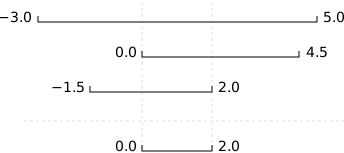
Most novice programmers would solve this problem like this:
- Write a function
range_overlap. - Call it interactively on two or three different inputs.
- If it produces the wrong answer, fix the function and re-run that test.
This clearly works — after all, thousands of scientists are doing it right now — but there’s a better way:
- Write a short function for each test.
- Write a
range_overlapfunction that should pass those tests. - If
range_overlapproduces any wrong answers, fix it and re-run the test functions.
Writing the tests before writing the function they exercise is called test-driven development (TDD). Its advocates believe it produces better code faster because:
- If people write tests after writing the thing to be tested, they are subject to confirmation bias, i.e., they subconsciously write tests to show that their code is correct, rather than to find errors.
- Writing tests helps programmers figure out what the function is actually supposed to do.
Here are three test functions for range_overlap:
assert range_overlap([ (0.0, 1.0) ]) == (0.0, 1.0)
assert range_overlap([ (2.0, 3.0), (2.0, 4.0) ]) == (2.0, 3.0)
assert range_overlap([ (0.0, 1.0), (0.0, 2.0), (-1.0, 1.0) ]) == (0.0, 1.0)
---------------------------------------------------------------------------
AssertionError Traceback (most recent call last)
<ipython-input-25-d8be150fbef6> in <module>()
----> 1 assert range_overlap([ (0.0, 1.0) ]) == (0.0, 1.0)
2 assert range_overlap([ (2.0, 3.0), (2.0, 4.0) ]) == (2.0, 3.0)
3 assert range_overlap([ (0.0, 1.0), (0.0, 2.0), (-1.0, 1.0) ]) == (0.0, 1.0)
AssertionError:
The error is actually reassuring:
we haven’t written range_overlap yet,
so if the tests passed,
it would be a sign that someone else had
and that we were accidentally using their function.
And as a bonus of writing these tests, we’ve implicitly defined what our input and output look like: we expect a list of pairs as input, and produce a single pair as output.
Something important is missing, though. We don’t have any tests for the case where the ranges don’t overlap at all:
assert range_overlap([ (0.0, 1.0), (5.0, 6.0) ]) == ???
What should range_overlap do in this case:
fail with an error message,
produce a special value like (0.0, 0.0) to signal that there’s no overlap,
or something else?
Any actual implementation of the function will do one of these things;
writing the tests first helps us figure out which is best
before we’re emotionally invested in whatever we happened to write
before we realized there was an issue.
And what about this case?
assert range_overlap([ (0.0, 1.0), (1.0, 2.0) ]) == ???
Do two segments that touch at their endpoints overlap or not?
Mathematicians usually say “yes”,
but engineers usually say “no”.
The best answer is “whatever is most useful in the rest of our program”,
but again,
any actual implementation of range_overlap is going to do something,
and whatever it is ought to be consistent with what it does when there’s no overlap at all.
Since we’re planning to use the range this function returns as the X axis in a time series chart, we decide that:
- every overlap has to have non-zero width, and
- we will return the special value
Nonewhen there’s no overlap.
None is built into Python,
and means “nothing here”.
(Other languages often call the equivalent value null or nil).
With that decision made,
we can finish writing our last two tests:
assert range_overlap([ (0.0, 1.0), (5.0, 6.0) ]) == None
assert range_overlap([ (0.0, 1.0), (1.0, 2.0) ]) == None
---------------------------------------------------------------------------
AssertionError Traceback (most recent call last)
<ipython-input-26-d877ef460ba2> in <module>()
----> 1 assert range_overlap([ (0.0, 1.0), (5.0, 6.0) ]) == None
2 assert range_overlap([ (0.0, 1.0), (1.0, 2.0) ]) == None
AssertionError:
Again, we get an error because we haven’t written our function, but we’re now ready to do so:
def range_overlap(ranges):
"""Return common overlap among a set of [left, right] ranges."""
max_left = 0.0
min_right = 1.0
for (left, right) in ranges:
max_left = max(max_left, left)
min_right = min(min_right, right)
return (max_left, min_right)
Take a moment to think about why we calculate the left endpoint of the overlap as the maximum of the input left endpoints, and the overlap right endpoint as the minimum of the input right endpoints. We’d now like to re-run our tests, but they’re scattered across three different cells. To make running them easier, let’s put them all in a function:
def test_range_overlap():
assert range_overlap([ (0.0, 1.0), (5.0, 6.0) ]) == None
assert range_overlap([ (0.0, 1.0), (1.0, 2.0) ]) == None
assert range_overlap([ (0.0, 1.0) ]) == (0.0, 1.0)
assert range_overlap([ (2.0, 3.0), (2.0, 4.0) ]) == (2.0, 3.0)
assert range_overlap([ (0.0, 1.0), (0.0, 2.0), (-1.0, 1.0) ]) == (0.0, 1.0)
assert range_overlap([]) == None
We can now test range_overlap with a single function call:
test_range_overlap()
---------------------------------------------------------------------------
AssertionError Traceback (most recent call last)
<ipython-input-29-cf9215c96457> in <module>()
----> 1 test_range_overlap()
<ipython-input-28-5d4cd6fd41d9> in test_range_overlap()
1 def test_range_overlap():
----> 2 assert range_overlap([ (0.0, 1.0), (5.0, 6.0) ]) == None
3 assert range_overlap([ (0.0, 1.0), (1.0, 2.0) ]) == None
4 assert range_overlap([ (0.0, 1.0) ]) == (0.0, 1.0)
5 assert range_overlap([ (2.0, 3.0), (2.0, 4.0) ]) == (2.0, 3.0)
AssertionError:
The first test that was supposed to produce None fails,
so we know something is wrong with our function.
We don’t know whether the other tests passed or failed
because Python halted the program as soon as it spotted the first error.
Still,
some information is better than none,
and if we trace the behavior of the function with that input,
we realize that we’re initializing max_left and min_right to 0.0 and 1.0 respectively,
regardless of the input values.
This violates another important rule of programming:
always initialize from data.
Pre- and Post-Conditions
Suppose you are writing a function called
averagethat calculates the average of the numbers in a list. What pre-conditions and post-conditions would you write for it? Compare your answer to your neighbor’s: can you think of a function that will pass your tests but not his/hers or vice versa?Solution
# a possible pre-condition: assert len(input_list) > 0, 'List length must be non-zero' # a possible post-condition: assert numpy.min(input_list) <= average <= numpy.max(input_list), 'Average should be between min and max of input values (inclusive)'
Testing Assertions
Given a sequence of a number of cars, the function
get_total_carsreturns the total number of cars.get_total_cars([1, 2, 3, 4])10get_total_cars(['a', 'b', 'c'])ValueError: invalid literal for int() with base 10: 'a'Explain in words what the assertions in this function check, and for each one, give an example of input that will make that assertion fail.
def get_total(values): assert len(values) > 0 for element in values: assert int(element) values = [int(element) for element in values] total = sum(values) assert total > 0 return totalSolution
- The first assertion checks that the input sequence
valuesis not empty. An empty sequence such as[]will make it fail.- The second assertion checks that each value in the list can be turned into an integer. Input such as
[1, 2,'c', 3]will make it fail.- The third assertion checks that the total of the list is greater than 0. Input such as
[-10, 2, 3]will make it fail.
Key Points
Program defensively, i.e., assume that errors are going to arise, and write code to detect them when they do.
Put assertions in programs to check their state as they run, and to help readers understand how those programs are supposed to work.
Use preconditions to check that the inputs to a function are safe to use.
Use postconditions to check that the output from a function is safe to use.
Write tests before writing code in order to help determine exactly what that code is supposed to do.
Command-Line Programs
Overview
Teaching: 30 min
Exercises: 30 minQuestions
How can I write Python programs that will work like Unix command-line tools?
Objectives
Use the values of command-line arguments in a program.
Handle flags and files separately in a command-line program.
Read data from standard input in a program so that it can be used in a pipeline.
The Jupyter Notebook and other interactive tools are great for prototyping code and exploring data, but sooner or later we will want to use our program in a pipeline or run it in a shell script to process thousands of data files. In order to do that, we need to make our programs work like other Unix command-line tools. For example, we may want a program that reads a dataset and prints the average inflammation per patient.
Switching to Shell Commands
In this lesson we are switching from typing commands in a Python interpreter to typing commands in a shell terminal window (such as bash). When you see a
$in front of a command that tells you to run that command in the shell rather than the Python interpreter.
This program does exactly what we want - it prints the average inflammation per patient for a given file.
$ python ../code/readings_04.py --mean inflammation-01.csv
5.45
5.425
6.1
...
6.4
7.05
5.9
We might also want to look at the minimum of the first four lines
$ head -4 inflammation-01.csv | python ../code/readings_06.py --min
or the maximum inflammations in several files one after another:
$ python ../code/readings_04.py --max inflammation-*.csv
Our scripts should do the following:
- If no filename is given on the command line, read data from standard input.
- If one or more filenames are given, read data from them and report statistics for each file separately.
- Use the
--min,--mean, or--maxflag to determine what statistic to print.
To make this work, we need to know how to handle command-line arguments in a program, and understand how to handle standard input. We’ll tackle these questions in turn below.
Command-Line Arguments
Using the text editor of your choice,
save the following in a text file called sys_version.py:
import sys
print('version is', sys.version)
The first line imports a library called sys,
which is short for “system”.
It defines values such as sys.version,
which describes which version of Python we are running.
We can run this script from the command line like this:
$ python sys_version.py
version is 3.4.3+ (default, Jul 28 2015, 13:17:50)
[GCC 4.9.3]
Create another file called argv_list.py and save the following text to it.
import sys
print('sys.argv is', sys.argv)
The strange name argv stands for “argument values”.
Whenever Python runs a program,
it takes all of the values given on the command line
and puts them in the list sys.argv
so that the program can determine what they were.
If we run this program with no arguments:
$ python argv_list.py
sys.argv is ['argv_list.py']
the only thing in the list is the full path to our script,
which is always sys.argv[0].
If we run it with a few arguments, however:
$ python argv_list.py first second third
sys.argv is ['argv_list.py', 'first', 'second', 'third']
then Python adds each of those arguments to that magic list.
With this in hand, let’s build a version of readings.py that always prints
the per-patient mean of a single data file.
The first step is to write a function that outlines our implementation,
and a placeholder for the function that does the actual work.
By convention this function is usually called main,
though we can call it whatever we want:
$ cat ../code/readings_01.py
import sys
import numpy
def main():
script = sys.argv[0]
filename = sys.argv[1]
data = numpy.loadtxt(filename, delimiter=',')
for row_mean in numpy.mean(data, axis=1):
print(row_mean)
This function gets the name of the script from sys.argv[0],
because that’s where it’s always put,
and the name of the file to process from sys.argv[1].
Here’s a simple test:
$ python ../code/readings_01.py inflammation-01.csv
There is no output because we have defined a function,
but haven’t actually called it.
Let’s add a call to main:
$ cat ../code/readings_02.py
import sys
import numpy
def main():
script = sys.argv[0]
filename = sys.argv[1]
data = numpy.loadtxt(filename, delimiter=',')
for row_mean in numpy.mean(data, axis=1):
print(row_mean)
if __name__ == '__main__':
main()
and run that:
$ python ../code/readings_02.py inflammation-01.csv
5.45
5.425
6.1
5.9
5.55
6.225
5.975
6.65
6.625
6.525
6.775
5.8
6.225
5.75
5.225
6.3
6.55
5.7
5.85
6.55
5.775
5.825
6.175
6.1
5.8
6.425
6.05
6.025
6.175
6.55
6.175
6.35
6.725
6.125
7.075
5.725
5.925
6.15
6.075
5.75
5.975
5.725
6.3
5.9
6.75
5.925
7.225
6.15
5.95
6.275
5.7
6.1
6.825
5.975
6.725
5.7
6.25
6.4
7.05
5.9
Running Versus Importing
Running a Python script in bash is very similar to importing that file in Python. The biggest difference is that we don’t expect anything to happen when we import a file, whereas when running a script, we expect to see some output printed to the console.
In order for a Python script to work as expected when imported or when run as a script, we typically put the part of the script that produces output in the following if statement:
if __name__ == '__main__': main() # Or whatever function produces outputWhen you import a Python file,
__name__is the name of that file (e.g., when importingreadings.py,__name__is'readings'). However, when running a script in bash,__name__is always set to'__main__'in that script so that you can determine if the file is being imported or run as a script.
The Right Way to Do It
If our programs can take complex parameters or multiple filenames, we shouldn’t handle
sys.argvdirectly. Instead, we should use Python’sargparselibrary, which handles common cases in a systematic way, and also makes it easy for us to provide sensible error messages for our users. We will not cover this module in this lesson but you can go to Tshepang Lekhonkhobe’s Argparse tutorial that is part of Python’s Official Documentation.
Handling Multiple Files
The next step is to teach our program how to handle multiple files. Since 60 lines of output per file is a lot to page through, we’ll start by using three smaller files, each of which has three days of data for two patients:
$ ls small-*.csv
small-01.csv small-02.csv small-03.csv
$ cat small-01.csv
0,0,1
0,1,2
$ python ../code/readings_02.py small-01.csv
0.333333333333
1.0
Using small data files as input also allows us to check our results more easily: here, for example, we can see that our program is calculating the mean correctly for each line, whereas we were really taking it on faith before. This is yet another rule of programming: test the simple things first.
We want our program to process each file separately,
so we need a loop that executes once for each filename.
If we specify the files on the command line,
the filenames will be in sys.argv,
but we need to be careful:
sys.argv[0] will always be the name of our script,
rather than the name of a file.
We also need to handle an unknown number of filenames,
since our program could be run for any number of files.
The solution to both problems is to loop over the contents of sys.argv[1:].
The ‘1’ tells Python to start the slice at location 1,
so the program’s name isn’t included;
since we’ve left off the upper bound,
the slice runs to the end of the list,
and includes all the filenames.
Here’s our changed program
readings_03.py:
$ cat ../code/readings_03.py
import sys
import numpy
def main():
script = sys.argv[0]
for filename in sys.argv[1:]:
data = numpy.loadtxt(filename, delimiter=',')
for row_mean in numpy.mean(data, axis=1):
print(row_mean)
if __name__ == '__main__':
main()
and here it is in action:
$ python ../code/readings_03.py small-01.csv small-02.csv
0.333333333333
1.0
13.6666666667
11.0
The Right Way to Do It
At this point, we have created three versions of our script called
readings_01.py,readings_02.py, andreadings_03.py. We wouldn’t do this in real life: instead, we would have one file calledreadings.pythat we committed to version control every time we got an enhancement working. For teaching, though, we need all the successive versions side by side.
Handling Command-Line Flags
The next step is to teach our program to pay attention to the --min, --mean, and --max flags.
These always appear before the names of the files,
so we could do this:
$ cat ../code/readings_04.py
import sys
import numpy
def main():
script = sys.argv[0]
action = sys.argv[1]
filenames = sys.argv[2:]
for filename in filenames:
data = numpy.loadtxt(filename, delimiter=',')
if action == '--min':
values = numpy.min(data, axis=1)
elif action == '--mean':
values = numpy.mean(data, axis=1)
elif action == '--max':
values = numpy.max(data, axis=1)
for val in values:
print(val)
if __name__ == '__main__':
main()
This works:
$ python ../code/readings_04.py --max small-01.csv
1.0
2.0
but there are several things wrong with it:
-
mainis too large to read comfortably. -
If we do not specify at least two additional arguments on the command-line, one for the flag and one for the filename, but only one, the program will not throw an exception but will run. It assumes that the file list is empty, as
sys.argv[1]will be considered theaction, even if it is a filename. Silent failures like this are always hard to debug. -
The program should check if the submitted
actionis one of the three recognized flags.
This version pulls the processing of each file out of the loop into a function of its own.
It also checks that action is one of the allowed flags
before doing any processing,
so that the program fails fast:
$ cat ../code/readings_05.py
import sys
import numpy
def main():
script = sys.argv[0]
action = sys.argv[1]
filenames = sys.argv[2:]
assert action in ['--min', '--mean', '--max'], \
'Action is not one of --min, --mean, or --max: ' + action
for filename in filenames:
process(filename, action)
def process(filename, action):
data = numpy.loadtxt(filename, delimiter=',')
if action == '--min':
values = numpy.min(data, axis=1)
elif action == '--mean':
values = numpy.mean(data, axis=1)
elif action == '--max':
values = numpy.max(data, axis=1)
for val in values:
print(val)
if __name__ == '__main__':
main()
This is four lines longer than its predecessor, but broken into more digestible chunks of 8 and 12 lines.
Handling Standard Input
The next thing our program has to do is read data from standard input if no filenames are given
so that we can put it in a pipeline,
redirect input to it,
and so on.
Let’s experiment in another script called count_stdin.py:
$ cat ../code/count_stdin.py
import sys
count = 0
for line in sys.stdin:
count += 1
print(count, 'lines in standard input')
This little program reads lines from a special “file” called sys.stdin,
which is automatically connected to the program’s standard input.
We don’t have to open it — Python and the operating system
take care of that when the program starts up —
but we can do almost anything with it that we could do to a regular file.
Let’s try running it as if it were a regular command-line program:
$ python ../code/count_stdin.py < small-01.csv
2 lines in standard input
A common mistake is to try to run something that reads from standard input like this:
$ python ../code/count_stdin.py small-01.csv
i.e., to forget the < character that redirects the file to standard input.
In this case,
there’s nothing in standard input,
so the program waits at the start of the loop for someone to type something on the keyboard.
Since there’s no way for us to do this,
our program is stuck,
and we have to halt it using the Interrupt option from the Kernel menu in the Notebook.
We now need to rewrite the program so that it loads data from sys.stdin
if no filenames are provided.
Luckily,
numpy.loadtxt can handle either a filename or an open file as its first parameter,
so we don’t actually need to change process.
Only main changes:
$ cat ../code/readings_06.py
import sys
import numpy
def main():
script = sys.argv[0]
action = sys.argv[1]
filenames = sys.argv[2:]
assert action in ['--min', '--mean', '--max'], \
'Action is not one of --min, --mean, or --max: ' + action
if len(filenames) == 0:
process(sys.stdin, action)
else:
for filename in filenames:
process(filename, action)
def process(filename, action):
data = numpy.loadtxt(filename, delimiter=',')
if action == '--min':
values = numpy.min(data, axis=1)
elif action == '--mean':
values = numpy.mean(data, axis=1)
elif action == '--max':
values = numpy.max(data, axis=1)
for val in values:
print(val)
if __name__ == '__main__':
main()
Let’s try it out:
$ python ../code/readings_06.py --mean < small-01.csv
0.333333333333
1.0
That’s better. In fact, that’s done: the program now does everything we set out to do.
Arithmetic on the Command Line
Write a command-line program that does addition and subtraction:
$ python arith.py add 1 23$ python arith.py subtract 3 4-1Solution
import sys def main(): assert len(sys.argv) == 4, 'Need exactly 3 arguments' operator = sys.argv[1] assert operator in ['add', 'subtract', 'multiply', 'divide'], \ 'Operator is not one of add, subtract, multiply, or divide: bailing out' try: operand1, operand2 = float(sys.argv[2]), float(sys.argv[3]) except ValueError: print('cannot convert input to a number: bailing out') return do_arithmetic(operand1, operator, operand2) def do_arithmetic(operand1, operator, operand2): if operator == 'add': value = operand1 + operand2 elif operator == 'subtract': value = operand1 - operand2 elif operator == 'multiply': value = operand1 * operand2 elif operator == 'divide': value = operand1 / operand2 print(value) main()
Finding Particular Files
Using the
globmodule introduced earlier, write a simple version oflsthat shows files in the current directory with a particular suffix. A call to this script should look like this:$ python my_ls.py pyleft.py right.py zero.pySolution
import sys import glob def main(): """prints names of all files with sys.argv as suffix""" assert len(sys.argv) >= 2, 'Argument list cannot be empty' suffix = sys.argv[1] # NB: behaviour is not as you'd expect if sys.argv[1] is * glob_input = '*.' + suffix # construct the input glob_output = sorted(glob.glob(glob_input)) # call the glob function for item in glob_output: # print the output print(item) return main()
Changing Flags
Rewrite
readings.pyso that it uses-n,-m, and-xinstead of--min,--mean, and--maxrespectively. Is the code easier to read? Is the program easier to understand?Solution
# this is code/readings_07.py import sys import numpy def main(): script = sys.argv[0] action = sys.argv[1] filenames = sys.argv[2:] assert action in ['-n', '-m', '-x'], \ 'Action is not one of -n, -m, or -x: ' + action if len(filenames) == 0: process(sys.stdin, action) else: for filename in filenames: process(filename, action) def process(filename, action): data = numpy.loadtxt(filename, delimiter=',') if action == '-n': values = numpy.min(data, axis=1) elif action == '-m': values = numpy.mean(data, axis=1) elif action == '-x': values = numpy.max(data, axis=1) for val in values: print(val) main()
Adding a Help Message
Separately, modify
readings.pyso that if no parameters are given (i.e., no action is specified and no filenames are given), it prints a message explaining how it should be used.Solution
# this is code/readings_08.py import sys import numpy def main(): script = sys.argv[0] if len(sys.argv) == 1: # no arguments, so print help message print("""Usage: python readings_08.py action filenames action must be one of --min --mean --max if filenames is blank, input is taken from stdin; otherwise, each filename in the list of arguments is processed in turn""") return action = sys.argv[1] filenames = sys.argv[2:] assert action in ['--min', '--mean', '--max'], \ 'Action is not one of --min, --mean, or --max: ' + action if len(filenames) == 0: process(sys.stdin, action) else: for filename in filenames: process(filename, action) def process(filename, action): data = numpy.loadtxt(filename, delimiter=',') if action == '--min': values = numpy.min(data, axis=1) elif action == '--mean': values = numpy.mean(data, axis=1) elif action == '--max': values = numpy.max(data, axis=1) for val in values: print(val) main()
Adding a Default Action
Separately, modify
readings.pyso that if no action is given it displays the means of the data.Solution
# this is code/readings_09.py import sys import numpy def main(): script = sys.argv[0] action = sys.argv[1] if action not in ['--min', '--mean', '--max']: # if no action given action = '--mean' # set a default action, that being mean filenames = sys.argv[1:] # start the filenames one place earlier in the argv list else: filenames = sys.argv[2:] if len(filenames) == 0: process(sys.stdin, action) else: for filename in filenames: process(filename, action) def process(filename, action): data = numpy.loadtxt(filename, delimiter=',') if action == '--min': values = numpy.min(data, axis=1) elif action == '--mean': values = numpy.mean(data, axis=1) elif action == '--max': values = numpy.max(data, axis=1) for val in values: print(val) main()
A File-Checker
Write a program called
check.pythat takes the names of one or more inflammation data files as arguments and checks that all the files have the same number of rows and columns. What is the best way to test your program?Solution
import sys import numpy def main(): script = sys.argv[0] filenames = sys.argv[1:] if len(filenames) <=1: #nothing to check print('Only 1 file specified on input') else: nrow0, ncol0 = row_col_count(filenames[0]) print('First file %s: %d rows and %d columns' % (filenames[0], nrow0, ncol0)) for filename in filenames[1:]: nrow, ncol = row_col_count(filename) if nrow != nrow0 or ncol != ncol0: print('File %s does not check: %d rows and %d columns' % (filename, nrow, ncol)) else: print('File %s checks' % filename) return def row_col_count(filename): try: nrow, ncol = numpy.loadtxt(filename, delimiter=',').shape except ValueError: # 'ValueError' error is raised when numpy encounters lines that # have different number of data elements in them than the rest of the lines, # or when lines have non-numeric elements nrow, ncol = (0, 0) return nrow, ncol main()
Counting Lines
Write a program called
line_count.pythat works like the Unixwccommand:
- If no filenames are given, it reports the number of lines in standard input.
- If one or more filenames are given, it reports the number of lines in each, followed by the total number of lines.
Solution
import sys def main(): """print each input filename and the number of lines in it, and print the sum of the number of lines""" filenames = sys.argv[1:] sum_nlines = 0 #initialize counting variable if len(filenames) == 0: # no filenames, just stdin sum_nlines = count_file_like(sys.stdin) print('stdin: %d' % sum_nlines) else: for filename in filenames: nlines = count_file(filename) print('%s %d' % (filename, nlines)) sum_nlines += nlines print('total: %d' % sum_nlines) def count_file(filename): """count the number of lines in a file""" f = open(filename,'r') nlines = len(f.readlines()) f.close() return(nlines) def count_file_like(file_like): """count the number of lines in a file-like object (eg stdin)""" n = 0 for line in file_like: n = n+1 return n main()
Generate an Error Message
Write a program called
check_arguments.pythat prints usage then exits the program if no arguments are provided. (Hint: You can usesys.exit()to exit the program.)$ python check_arguments.pyusage: python check_argument.py filename.txt$ python check_arguments.py filename.txtThanks for specifying arguments!
Key Points
The
syslibrary connects a Python program to the system it is running on.The list
sys.argvcontains the command-line arguments that a program was run with.Avoid silent failures.
The pseudo-file
sys.stdinconnects to a program’s standard input.